What Your Athletes See in the TeamBuildr App
The athlete-side app walkthrough, for coaches about to hand it to a squad. What athletes can log, change and opt out of, what the team feed and leaderboard expose, and which settings sit with them rather than with you.
What you’ll learn
- What an athlete can change and what they cannot, including opting out of an exercise and swapping in a substitute
- How athletes get in, so you can answer the question before it reaches you: an EasyJoin code, or an invitation to their email
- What the team feed and leaderboard put in front of a squad, and that you decide whether messaging is one-to-one, group, or announcement-only
- That offline mode exists, so a session in a basement gym still reaches you
- Where an athlete's exertion score comes from if they wear a watch, and what it is actually measuring
- That the app is TeamBuildr Training in the stores. Point anyone still on the old one at the new listing
Watch or read
9 minutes across 4 chapters. Click any chapter or timestamp to jump straight there.
4 chapters
Hey everyone and welcome to the video overview of the TeamBuilder app. This is the mobile app for iOS however the mobile app for Android is identical to iOS so in this video I will be doing one video for both mobile apps because it will be applicable to both Android and iPhone. So in the App Store the new app is called TeamBuilder Training. The date is July 12 so we have delisted the old app and the new app is TeamBuilder Training. So I'm going to go ahead and open this app. I am actually signed in right now. So if you are an athlete or a coach and you are looking to use the app you have to use an easy join code or you have to be invited by the admin on the account and the admin can type in your.
Email and that will send to your inbox a registration invitation which you can use to create an account and then once you create an account you can download the app and then go ahead and log in to the mobile app. Otherwise you have an easy join code and that's easy you just plug in the code and we'll onboard you onto the mobile app. So this is the dashboard as you can see we have an exertion score. The exertion score is based off of inputs from your wearable. So we'll cover the wearable integration in a bit but basically if you have an Apple watch, a Garmin, a WHOOP, whatever we will collect that data and give you an exertion and an optional recovery score as well. Next is the workout for the day.
Today I do not have a workout and then below that is the calendar. So I'm gonna go ahead and click this middle button on the bottom to go ahead and look at my workout which today I don't have one but if I go back to Monday say I was making up a workout for Monday this is my workout. So I'll start with a note. I can see my note here. I can click the video to look at the video of the warm-up. I'll go ahead and exit out of that and then we can go ahead and click this little right hand arrow on the bottom to scroll exercise by exercise. So I have a dynamic warm-up followed by power clean. So everything is more or less the same as.
The old app. We can opt out if we would like. We can add a journal entry and we can attach a video to that journal entry as well. We can also go ahead and oops we can also go ahead and add media and this is a video or a photo or something from our library as well and that's a shortcut from the journal entry and then attaching media. The eye icon on the bottom left is the more info place where a coach can add more information and then the bottom right is our exercise history if you have any. So going through this you can see this is the superset for the B grouping and then finally I have my circuit and my circuit.
Still stuck? Contact support →
Read next
More in Mobile
Walkthrough
FreeOffline Mode on Mobile Explained
Offline Mode puts your app into an offline state so it doesn't try to make updates, upload data or pull data while you train. Basically, if you have poor signal and it's taking a while to respond / save workouts, this…
Also in Platform & Admin
Walkthrough
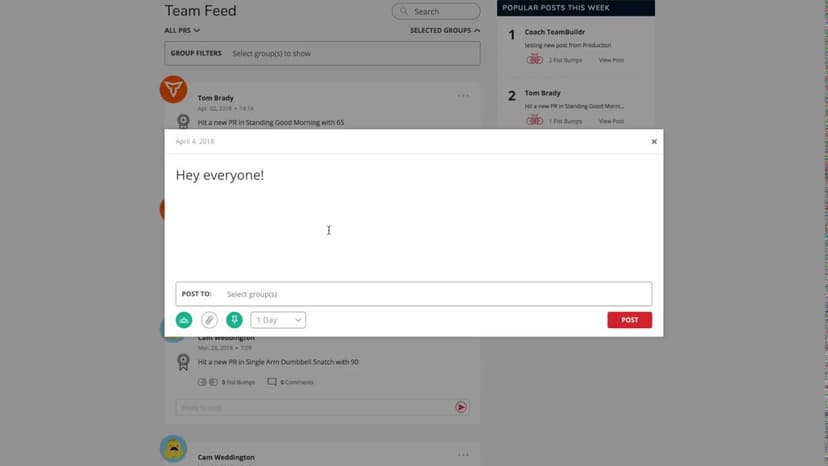
FreePosting on the Team Feed
A short video walkthrough of posting on the Team Feed from the TeamBuildr knowledge base.

Walkthrough
FreeGuide to the Team Feed
All Posts does not include PR's as they may crowd the Team Feed. You can filter by PR types. Popular posts are based on number of Fits Bumps! The following activities will now deliver a notification to a coach or athl…

Video · 4 min
FreeHow to Use the Leaderboard
How to Use the Leaderboard — from the TeamBuildr YouTube channel.

Video · 2 min
FreeHow to Manage a Client in Online Payments Portal
This is includes how to change a client's program, assign a new group, change credit card information and cancel a customer's subscription.
- Format
- Walkthrough
- Brand

- Category
- Mobile
- Topics
- Platform & Admin