Taking Attendance with TeamBuildr
Using an iPad or another tablet, coaches can take attendance directly in TeamBuildr in a way that allows for easy attendance taking and reporting: <
Using an iPad or another tablet, coaches can take attendance directly in TeamBuildr in a way that allows for easy attendance taking and reporting:
<
Watch or read
2 minutes across 3 chapters. Click any chapter or timestamp to jump straight there.
3 chapters
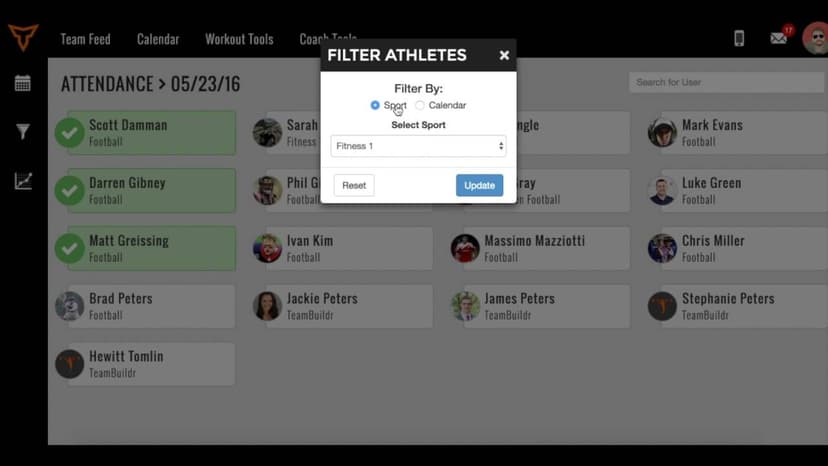
In this video, we're going to go over how to use the attendance feature inside of TeamBuilder. So the first thing we're going to do is we're going to head to Coach Tools, and we're going to drop down to the Attendance tab. On this page, you'll see a list of all of your athletes inside of your account with the ability to take attendance for the current day. Now, if you wanted to narrow it down a little bit more, you can use the icon over here on the left side, this filter icon.
This will allow you to filter between a group or a calendar. So from here, you can select the drop down, and let's say we want to just look at the baseball group. We'll hit Update, and now it's going to filter to just those athletes. If we filter by calendar, you'll see the same thing will happen if we select a specific calendar. All of the athletes assigned to that calendar will appear. And now if you need to simply take attendance, you'll just click on that athlete, and you'll see that they have been checked and they've been accounted for.
Still stuck? Contact support →
Read next
More in Attendance
Walkthrough
FreeUsing the Attendance Filter
A short video walkthrough of using the Attendance Filter from the TeamBuildr knowledge base.
Also in Platform & Admin
Walkthrough
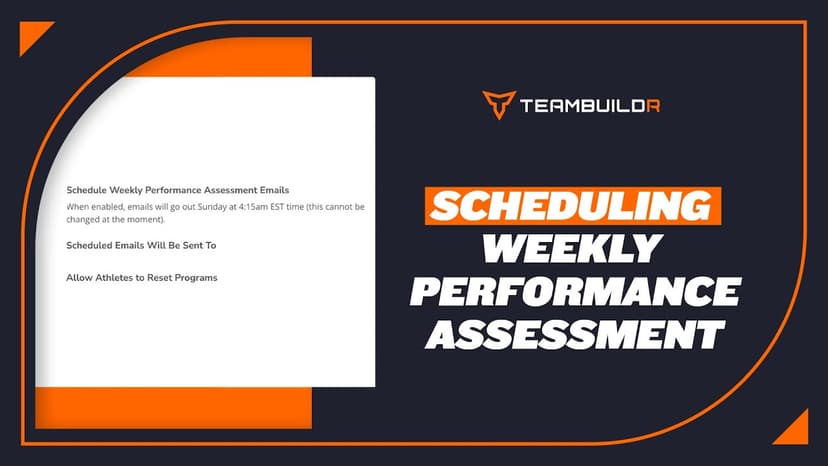
FreeScheduling the Weekly Performance Assessment
A short video walkthrough of scheduling the Weekly Performance Assessment from the TeamBuildr knowledge base.
Walkthrough
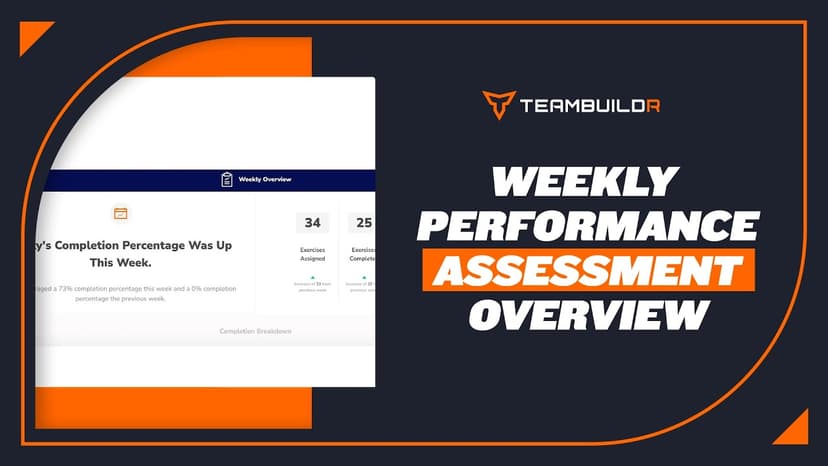
FreeWeekly Performance Assessment Overview
A short video walkthrough of weekly Performance Assessment Overview from the TeamBuildr knowledge base.
Spreadsheet · 2 walkthroughs
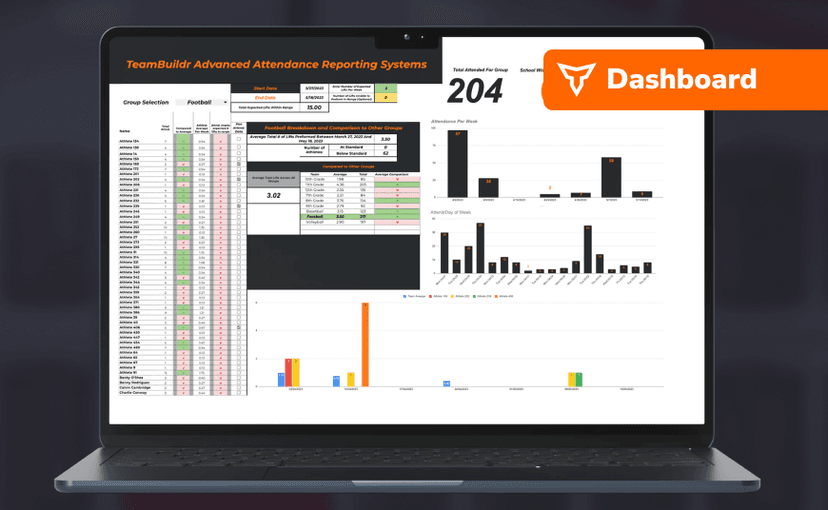
Free · sign upAdvanced Attendance Report
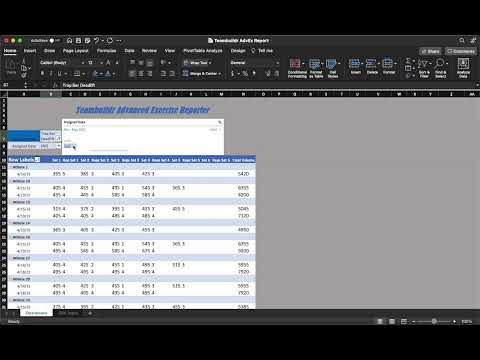
Attendance tracking for PE and weights classes that goes past a headcount. Copy the template and it totals participation per student over any window, ready to drop into a grade or a report to an administrator.
Spreadsheet · 7 walkthroughs
Free · sign upCustom Grading System
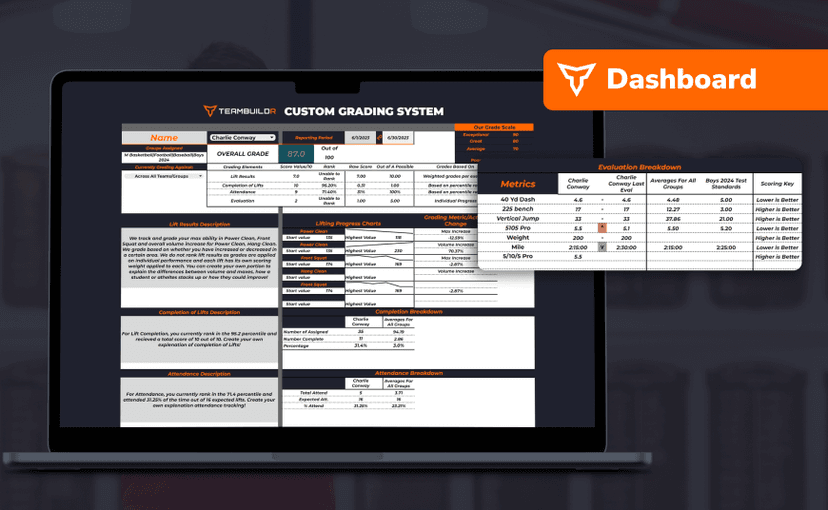
A ready-made grading spreadsheet for PE and weights classes. Copy the template, connect it to your TeamBuildr data, and it calculates an overall grade from attendance, workout completion and evaluations. Seven short videos walk you through every step of the setup.
Video · 4 min
FreeSingle Exercise Reporting System
This report is built by our In-House Sports Scientist - Teofe Ziemnicki, who advises all TeamBuildr customers on the Platinum Pro plan with custom reports, dashboards, data collection and visualization. In this report, coaches can easily take the CSV reports from TeamBuildr and c
- Format
- Walkthrough
- Brand

- Category
- Attendance
- Topics
- Platform & Admin