TeamBuildr OS Mobile App Integration
A short video walkthrough of teamBuildr OS Mobile App Integration from the TeamBuildr knowledge base.
Watch or read
3 minutes across 3 chapters. Click any chapter or timestamp to jump straight there.
3 chapters
In this video, we're going to go through the TeamBuilder OS integration within the TeamBuilder Training mobile app. This integration allows your athletes and members to have a single mobile app that will allow them to track their workouts, communicate with coaches, and manage their schedule and bookings. Upon opening the dashboard, athletes will see a header there that says today's bookings and will show any bookings for today's calendar date. If they do not have any bookings for the current calendar date, that integration module will show just as no booked classes. If I need to book extra classes or manage the current bookings, I can simply tap on that module in the middle of the screen and then it will take me to my upcoming bookings list. So you can see.
I have one for Wednesday, July 22nd and another one for July 24th. If I need to manage this, I can click on this booking, click on manage, and then I can cancel myself as needed. Now let's say I need to book a new class. So I can go to tomorrow. I'm going to go to the 8 p.m. Running club. I'm going to click on book class. A new feature here is our linked accounts feature that you're seeing now. I am currently logged in as Shane Falco, but I have a connected profile in Happy Gilmore that I can also manage from the single login. This removes the need to log in and log out to handle family members or children's bookings from a single profile. Let's try to book Happy Gilmore into this running club.
Still stuck? Contact support →
Read next
More in TeamBuildr OS Integration
Walkthrough
FreeHow to Connect TeamBuildr OS to TeamBuildr Strength Account
A short video walkthrough of how to Connect TeamBuildr OS to TeamBuildr Strength Account from the TeamBuildr knowledge base.
Also in Platform & Admin
Walkthrough
FreeOverview of TeamBuildr OS Hub within TeamBuildr Strength
A short video walkthrough of overview of TeamBuildr OS Hub within TeamBuildr Strength from the TeamBuildr knowledge base.
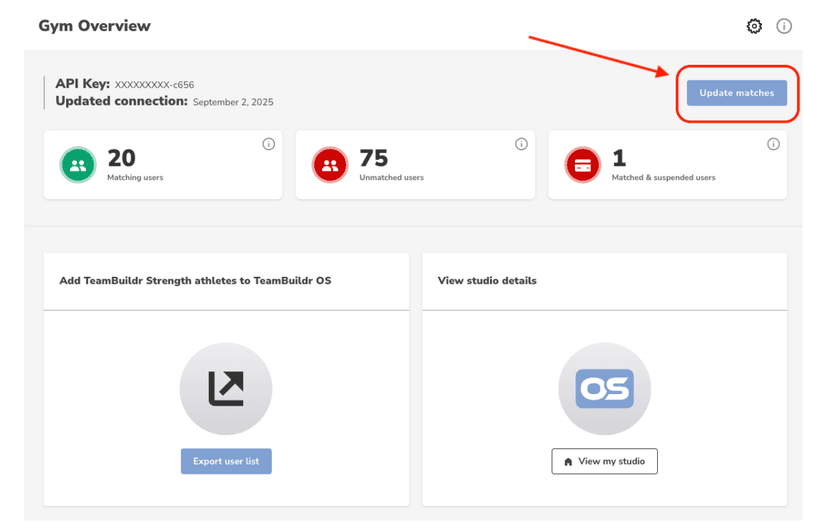
Walkthrough
FreeTeamBuildr Strength and TeamBuildr OS Integration FAQ Article
Check out some common FAQs regarding the new TeamBuildr Strength and TeamBuildr OS Integration. Q: What app will my members use to book classes? A: If you use both TeamBuildr Strength and TeamBuildr OS and have matche…
Video · 2 min
FreeFamily Account Linking Mobile Overview
Family Account Linking Mobile Overview — from the TeamBuildr YouTube channel.

Video · 1 min
FreeManaging Linked Accounts in the Mobile App
Managing Linked Accounts in the Mobile App — from the TeamBuildr YouTube channel.
Video · 2 min
FreeMember Mobile App Overview
Member Mobile App Overview — from the TeamBuildr YouTube channel.
- Format
- Walkthrough
- Brand

- Category
- TeamBuildr OS Integration
- Topics
- Platform & Admin