How to Do "Whiteboard"
A short video walkthrough of how to Do "Whiteboard" from the TeamBuildr knowledge base.
Watch or read
6 minutes across 4 chapters. Click any chapter or timestamp to jump straight there.
4 chapters
All right, so we are going to introduce a new feature that we are pretty excited about showing everyone, and it's our new timer system. So it's specifically a TV timing system, and we call it Whiteboard. So if you're in your TeamBuilder account, you're going to want to go to Workout Tools. And I'll go ahead and say up front, Whiteboard is on the TeamBuilder Platinum plan. So this is for Platinum users. But if I click on Whiteboard, then you'll get this four square screen. And I'm on a computer, but I'm going to demo this as if it's on a TV. So I'm going to go ahead and expand my screen. So what you would do actually is you would pull up Whiteboard on a computer or a.
Tablet, and then you would cast that computer or tablet to a television. So if you want help doing this, just let us know. There's plenty of ways to do it. Chromecast is a cheap one. You can also do this via Apple TV or just using a plain old HDMI cord to your computer. But basically, you get these four squares, and these can represent up to four groups in your weight room. And if you want to change the number of groups to one, just click this little icon down here. Two groups, four groups. So let's just use four groups for our example. And then let's take a calendar. So you could choose a calendar or you could choose an athlete to do this with. In our case, we're going to choose the same.
Still stuck? Contact support →
Read next
Also in Platform & Admin
Walkthrough
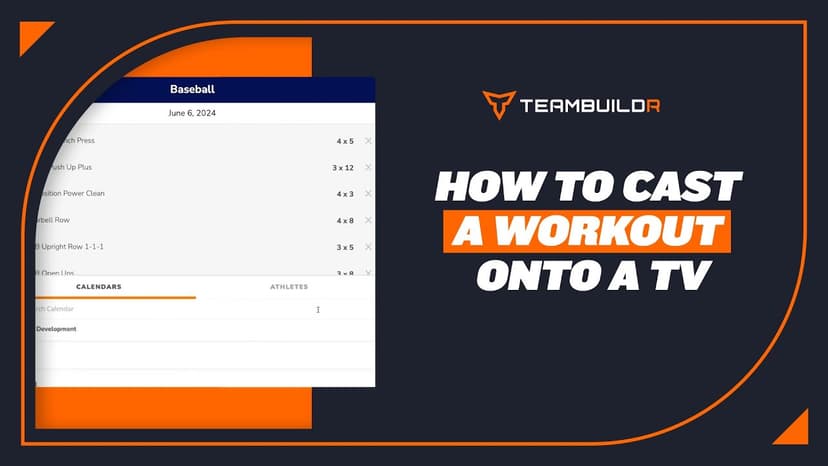
FreeCast a Workout on a TV
**Note Weightroom view and Whiteboard are only available at the Platinum and Platinum Pro level.
Walkthrough
FreeAi Uploader
Bring in a program you already have in a spreadsheet instead of rebuilding it by hand. The AI Uploader reads one tab at a time, detects weeks and days, and matches exercises to your database. It imports your template; it does not write one.

Walkthrough
FreeAthlete Video Upload for iOS and Android
How athletes record and upload lift video from the app, and where it lands for you to review. Useful for remote athletes or anyone coaching technique between sessions.
Spreadsheet · 2 walkthroughs
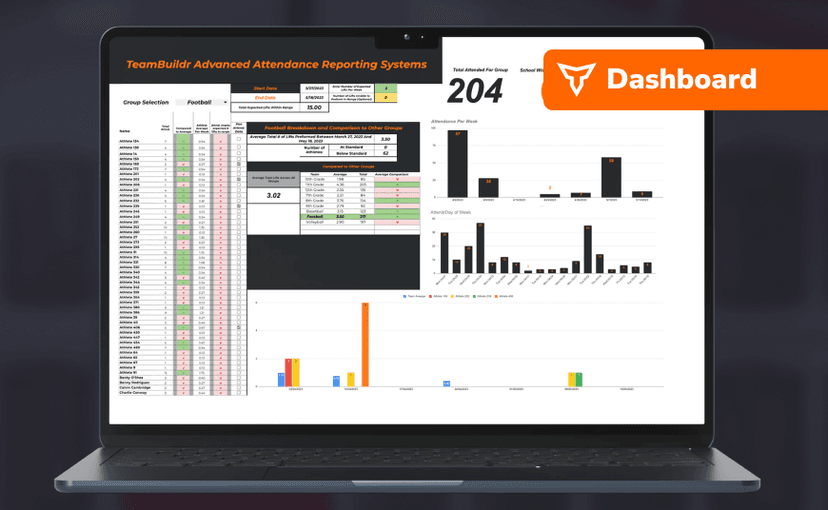
Free · sign upAdvanced Attendance Report
Attendance tracking for PE and weights classes that goes past a headcount. Copy the template and it totals participation per student over any window, ready to drop into a grade or a report to an administrator.
Spreadsheet · 2 walkthroughs
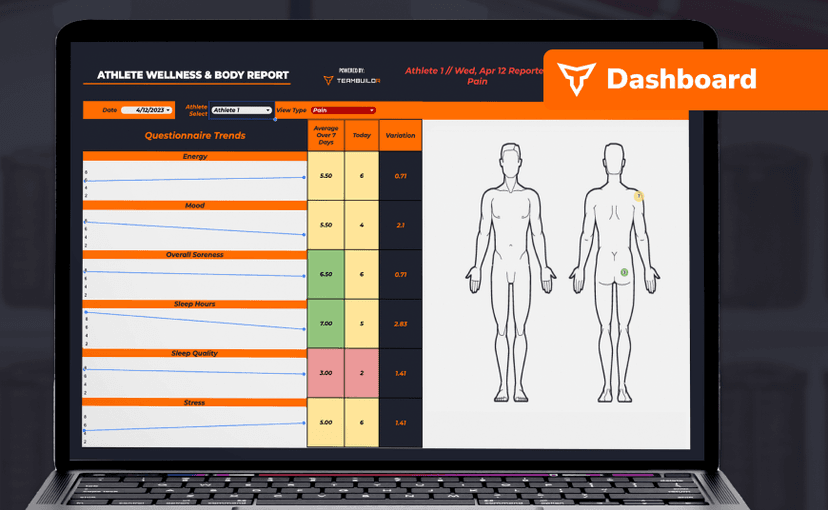
Free · sign upAthlete Wellness & Body Report
Track daily wellness check-ins and body composition in one sheet. Copy the template and follow the walkthrough to connect your athlete responses, then use the report to spot who is trending the wrong way before it costs you a session.
Spreadsheet · 7 walkthroughs
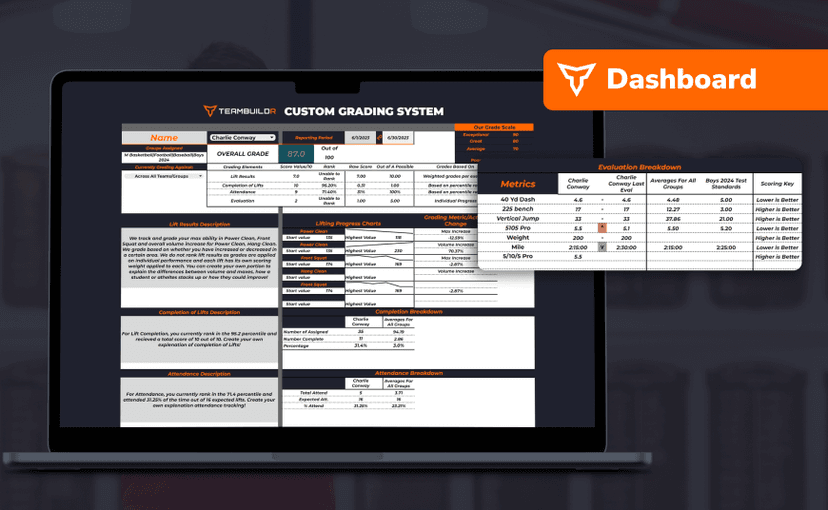
Free · sign upCustom Grading System
A ready-made grading spreadsheet for PE and weights classes. Copy the template, connect it to your TeamBuildr data, and it calculates an overall grade from attendance, workout completion and evaluations. Seven short videos walk you through every step of the setup.
- Format
- Walkthrough
- Brand

- Category
- Whiteboard (TV Timer)
- Topics
- Platform & Admin