How to Use the Evaluations Module
A short video walkthrough of how to Use the Evaluations Module from the TeamBuildr knowledge base.
Watch or read
7 minutes across 3 chapters. Click any chapter or timestamp to jump straight there.
3 chapters
So in this video today we're going to take a look at our newly updated evaluations feature available to the gold level or higher subscriptions so from our dashboard we're going to head to workout tools and slide down to evaluations and here on the new onboarding screen we now have three different ways that you can navigate through all of your evaluations you have the option of creating a new evaluation selecting from one that you've already made or simply managing your evaluation so being able to edit any of the questions that you may have placed into an existing evaluation so the first thing we're going to take a look at is creating a new evaluation we select here you'll see we'll enter in our evaluation name and now from here we have the option of either selecting from tracked.
Exercises or adding a custom item so with this new build out of the evaluations feature selecting a tracked exercise will now pull from any of the exercises in your database that have a tracking type selected and it will then not only enter the data and save it for the evaluations page but it will also save in your max's nprs page as well adding a custom item is the same that it's always been as our original evaluations feature where you can create any specific tests that you may want to track the only caveat to this is these will not be saved into the max's nprs that's only going to be for the select tracked exercise option so taking a look at both of these if we select select tracked exercise.
And let's say we want to pull from a back squat we can see that we are going to have two input values for the back squat we are going to be able to track weight as well as reps inside of the evaluation it's important to know with these tracked exercises they are going to be pulling from the information in the database itself so that's why all of these boxes are grayed out and you're unable to change them because this exercise has already been created in the database when you go to add a custom item so let's say we want to look at something wingspan we're going to type that item in and we want this to just be one value but we do have the option to toggle over to two if we wanted but we're going to keep.
Still stuck? Contact support →
Read next
More in Evaluations
Walkthrough
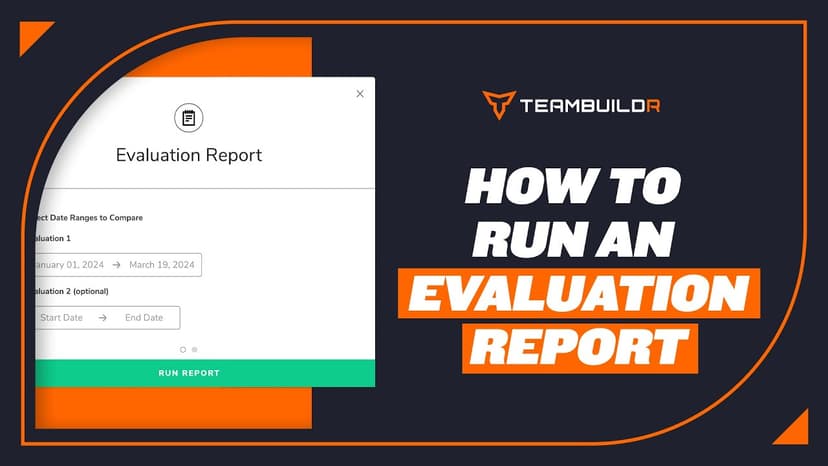
FreeHow to Run an Evaluation Report
A short video walkthrough of how to Run an Evaluation Report from the TeamBuildr knowledge base.
Also in Platform & Admin
Walkthrough
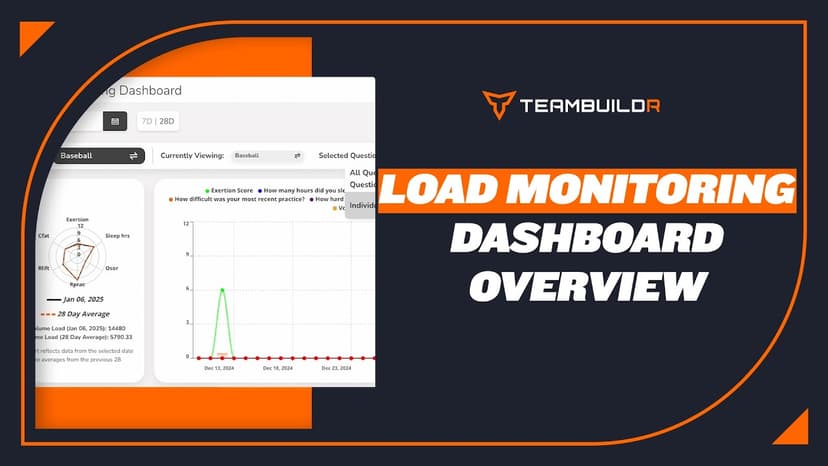
FreeLoad Monitoring Dashboard Module
The Load Monitoring Dashboard is a module that only comes with our AMS LITE add-on. The only module that is free within AMS LITE is the Wearables Dashboard module.
Spreadsheet · 7 walkthroughs
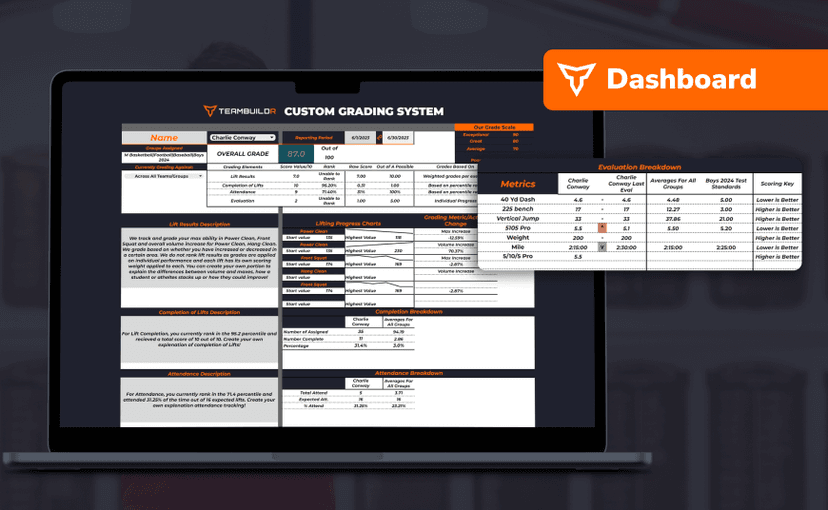
Free · sign upCustom Grading System
A ready-made grading spreadsheet for PE and weights classes. Copy the template, connect it to your TeamBuildr data, and it calculates an overall grade from attendance, workout completion and evaluations. Seven short videos walk you through every step of the setup.
Walkthrough
FreeAi Uploader
Bring in a program you already have in a spreadsheet instead of rebuilding it by hand. The AI Uploader reads one tab at a time, detects weeks and days, and matches exercises to your database. It imports your template; it does not write one.
Spreadsheet · 2 walkthroughs
Free · sign upAdvanced Attendance Report
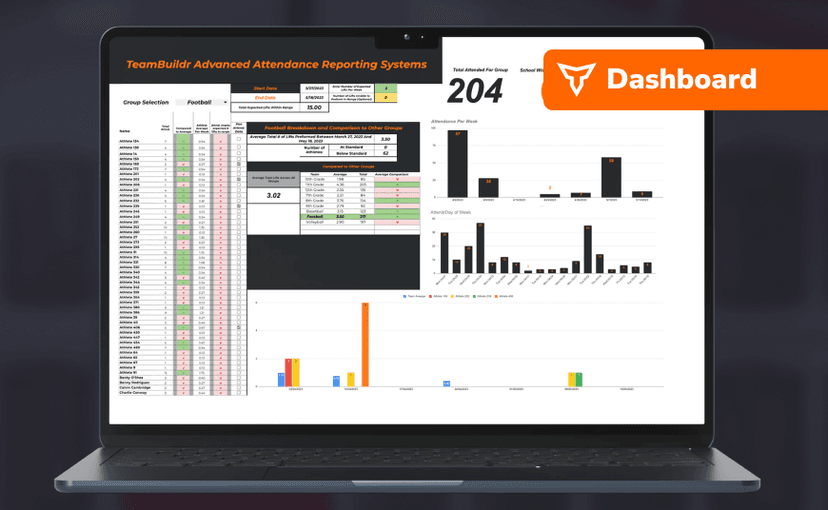
Attendance tracking for PE and weights classes that goes past a headcount. Copy the template and it totals participation per student over any window, ready to drop into a grade or a report to an administrator.
Spreadsheet · 2 walkthroughs
Free · sign upAthlete Wellness & Body Report
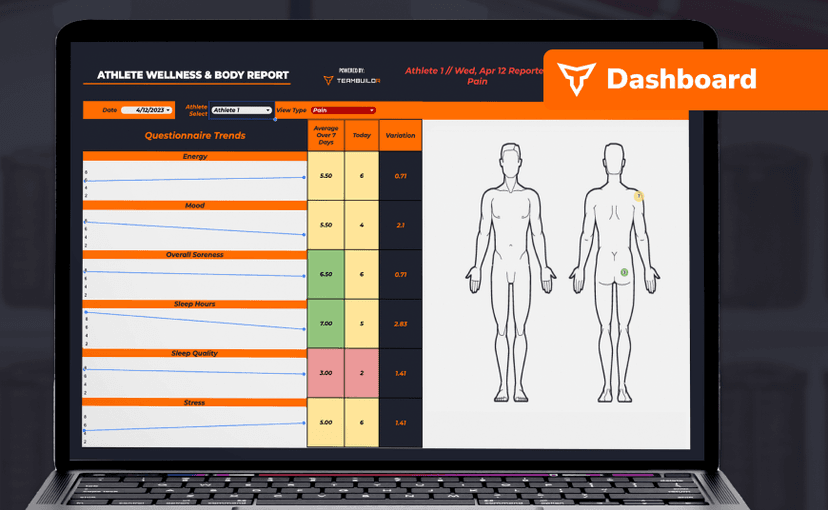
Track daily wellness check-ins and body composition in one sheet. Copy the template and follow the walkthrough to connect your athlete responses, then use the report to spot who is trending the wrong way before it costs you a session.
- Format
- Walkthrough
- Brand

- Category
- Evaluations
- Topics
- Platform & Admin