How to Manage a Client in the Payments Portal
A short video walkthrough of how to Manage a Client in the Payments Portal from the TeamBuildr knowledge base.
Watch or read
2 minutes across 3 chapters. Click any chapter or timestamp to jump straight there.
3 chapters
Let's discuss how to manage a user in the TeamBuilder Online Payments Portal. So once you get to your payments dashboard, you just want to go one down to where it says subscribers and we'll give you a list of all your active subscribers here in this list. Now a couple of things you can do is you can click into a subscriber and you can click manage user and this is what takes you to our traditional manage users page. So if you need to change their calendar, change their grouping, that's where you can do it.
Now the reason you might do this is for example, say someone signs up for your bodybuilding program and that's 25 bucks a month. But let's say they have some personal requests and you need to just do some more modifications to their programs or just switch them all together to something that's powerlifting or something that related to bodybuilding. You would click manage user and you would either take them off the calendar altogether and program for them individually or just switch them to a different calendar or switch them to a different group.
Still stuck? Contact support →
Read next
More in Optimizing - Payments Portal
Walkthrough
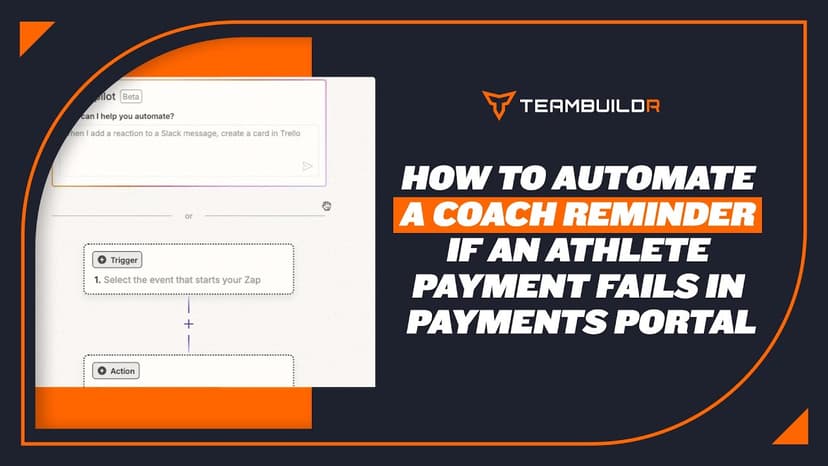
FreeHow to Automate a Coach Reminder if an Athlete Payment Fails in Payments Portal
A short video walkthrough of how to Automate a Coach Reminder if an Athlete Payment Fails in Payments Portal from the TeamBuildr knowledge base.
Also in Platform & Admin
Walkthrough
FreeHow to Issue Refund in Payments Portal
A short video walkthrough of how to Issue Refund in Payments Portal from the TeamBuildr knowledge base.

Walkthrough
FreeHow to Set Up a One-Time Payment Program in the Payments Portal
A short video walkthrough of how to Set Up a One-Time Payment Program in the Payments Portal from the TeamBuildr knowledge base.

Video · 2 min
FreeHow to Manage a Client in Online Payments Portal
This is includes how to change a client's program, assign a new group, change credit card information and cancel a customer's subscription.

Audio · 47 min
FreeEpisode #23: Using TeamBuildr to Leverage your Online Training and Cater to your Audience with Erica Suter
Erica Suter on running online training as a real business. Using the payments portal, keeping remote athletes accountable, and building an audience that converts.

1 chapter · 7 lessons
Free · sign upUsing the Payments Portal to Start Your Side Hustle
Learn how to sell your programs online by using TeamBuildr's payments portal.
- Format
- Walkthrough
- Brand

- Category
- Optimizing - Payments Portal
- Topics
- Platform & Admin