Combined Workout View
A short video walkthrough of combined Workout View from the TeamBuildr knowledge base.
Watch or read
5 minutes across 4 chapters. Click any chapter or timestamp to jump straight there.
4 chapters
Starting in October 2025, athletes can access their assigned programs via the program library in the workout view of their application. To do so, you can navigate to the workout view by clicking the barbell at the bottom. You'll be presented with your scheduled workouts. This is anything that's been assigned to a calendar via the traditional program assignment in Team Builder. Then we also have the program library workouts that may be assigned to an individual athlete. It'll show up here if they've already started one. If they have not started one, they click the plus button down here. Go to add program. Navigate to the all. This will be everything that's assigned to the individual athlete, not all programs in the user's account.
Anything that's been assigned to a particular athlete, client, or individual will show up here. The way you do that is go to the organization Team Builder account, go to manage users, and you can assign programs via the manage users page. To start a new one, you'll click on the program itself. You can click add program. This will then move this program from the all category to the active category that we saw on the previous page. You can click on the next session to preview it. This right here is just previewing what is in the first workout of this program. And you'll see here by this yellow banner, this is a preview to start the session. Click the start session button to begin. By hitting start session, it will bring it to the.
Still stuck? Contact support →
Read next
More in Getting Started - For Athletes
Walkthrough
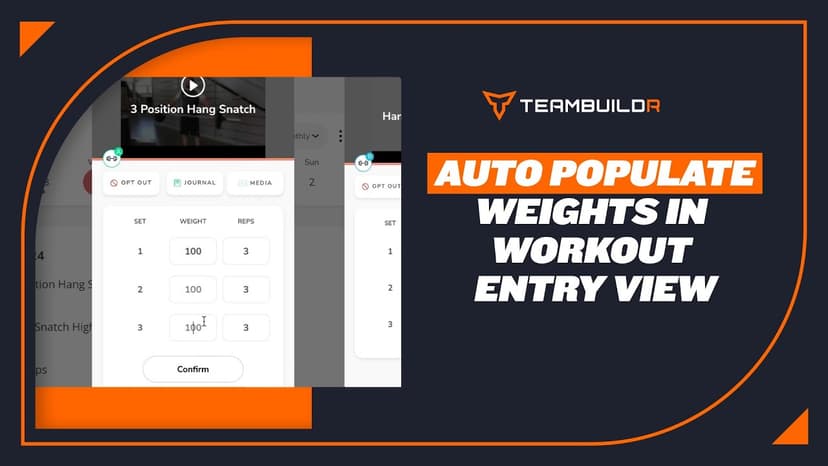
FreeAuto Populate Weights in Workout Entry View
A short video walkthrough of auto Populate Weights in Workout Entry View from the TeamBuildr knowledge base.
Also in Platform & Admin
Walkthrough
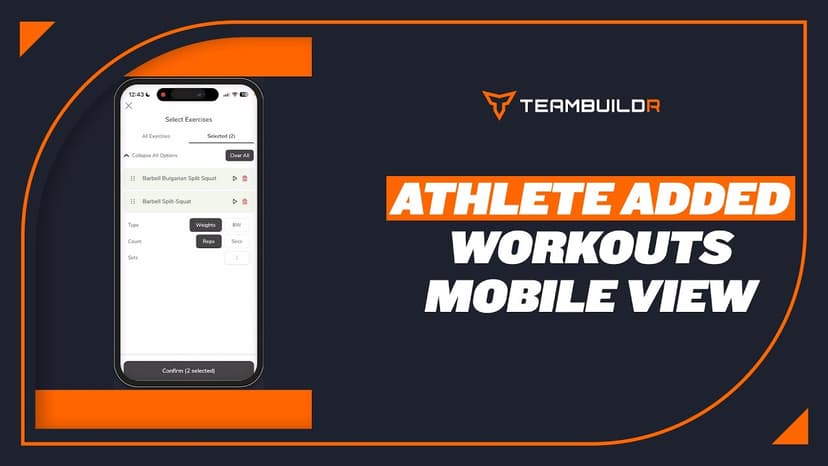
FreeAthlete Added Workouts - Mobile App View
A short video walkthrough of athlete Added Workouts - Mobile App View from the TeamBuildr knowledge base.
Walkthrough
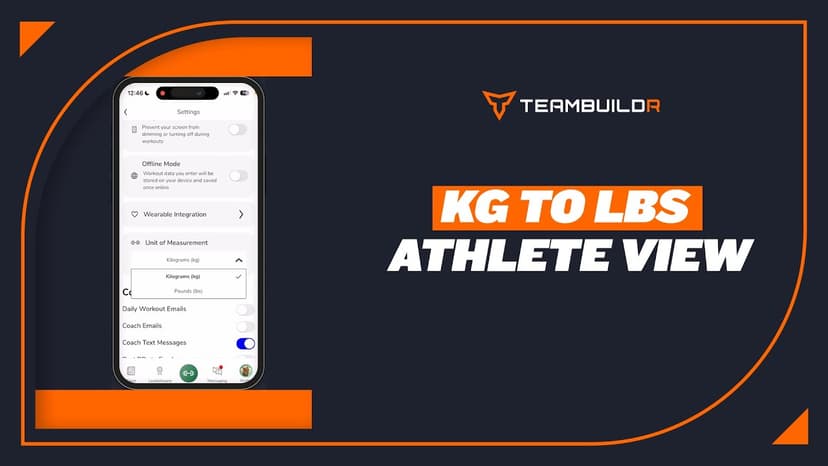
FreeKG to LBS. Athlete View
A short video walkthrough of kG to LBS. Athlete View from the TeamBuildr knowledge base.
Spreadsheet · 2 walkthroughs
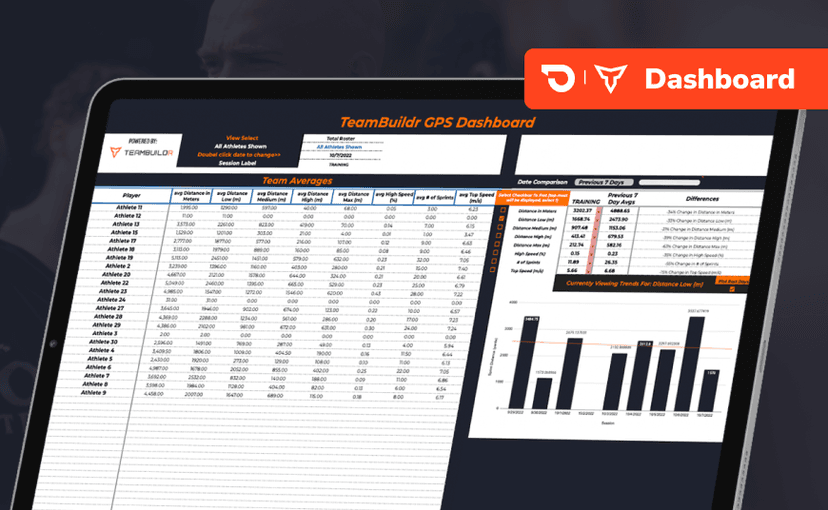
Free · sign upGPS Dashboard
Turn raw GPS exports into something you can actually read. Copy the template, follow the two setup videos, and you get a running view of load and distance per athlete. Built for coaches new to GPS or drowning in the files it produces.
Spreadsheet · 2 walkthroughs
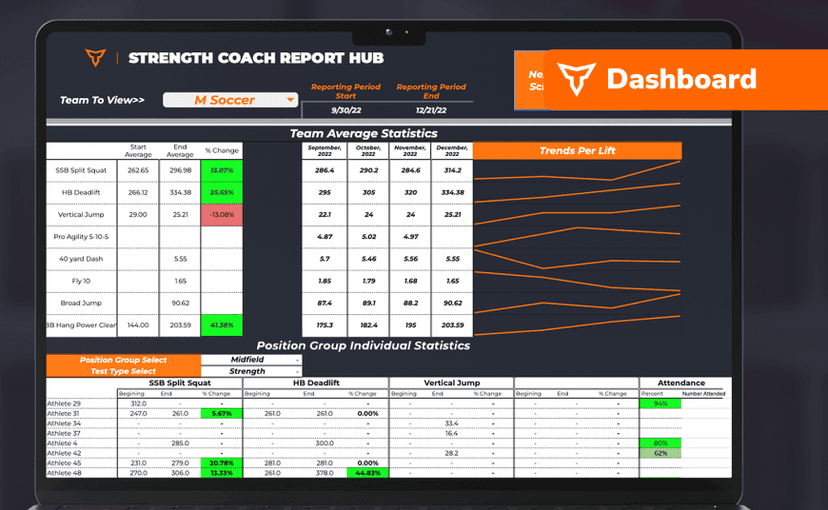
FreeSport Coach Dashboard
A shared view for sport coaches who want to see what is happening in the weight room without learning the whole platform. Copy the template and it surfaces the handful of numbers they actually ask about.
Spreadsheet · 2 walkthroughs
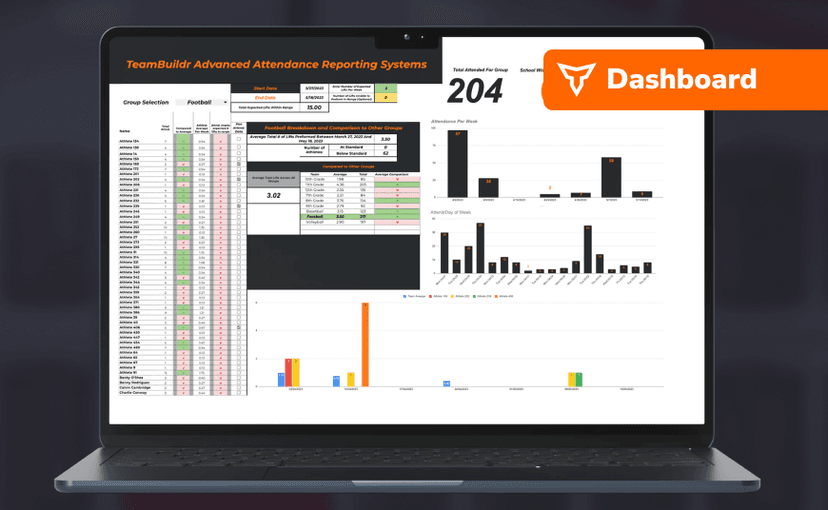
Free · sign upAdvanced Attendance Report
Attendance tracking for PE and weights classes that goes past a headcount. Copy the template and it totals participation per student over any window, ready to drop into a grade or a report to an administrator.
- Format
- Walkthrough
- Brand

- Category
- Getting Started - For Athletes
- Topics
- Platform & Admin