How to Run a Raw Data Report
A short video walkthrough of how to Run a Raw Data Report from the TeamBuildr knowledge base.
Watch or read
4 minutes across 3 chapters. Click any chapter or timestamp to jump straight there.
3 chapters
In this video we're going to take a look at how to run a raw data report. So the first thing we're going to do is head down to coach tools and select reporting. Over on the left hand side you'll see our option to select our athletes and we can select by an individual athlete by a group or by a calendar. So for this report we're going to run a group and we're going to select all. Now we're going to scroll down and we're going to see the raw data report.
It's important to note that this report is only available to the Platinum subscription and higher. But we're going to select this raw data report and now we are going to see several options that we have. We can select from completed workouts, we can select from our sports science questions, and we can select from maxes and health. And these are three individual raw data reports that you can choose from. So for this example we're going to select completed workouts and then we can select the date range that we want to do. So let's say we want to start from the beginning of July all the way to today. From here we can select to show external IDs, any tags that we have on any of these extra sizes, as well as some advanced workout data. So we'll turn this one on so that way you can.
Still stuck? Contact support →
Read next
More in Reporting
Walkthrough
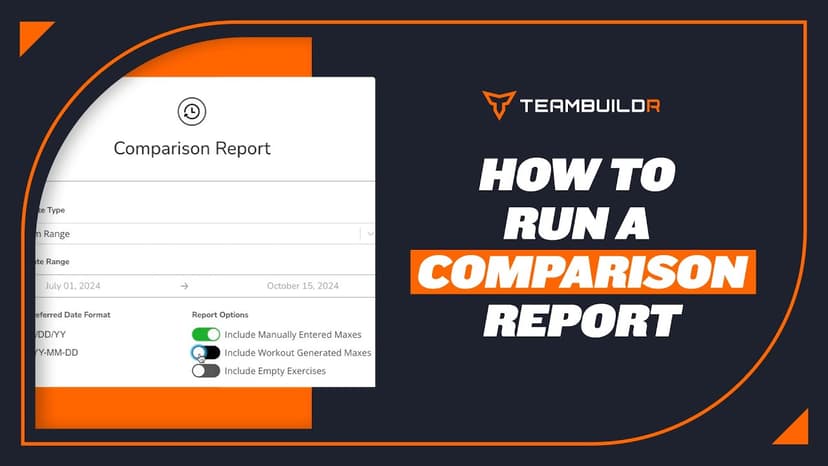
FreeHow to Run a Comparison Report
A short video walkthrough of how to Run a Comparison Report from the TeamBuildr knowledge base.
Also in Platform & Admin
Walkthrough
FreeHow to Run a Completion Report
A short video walkthrough of how to Run a Completion Report from the TeamBuildr knowledge base.
Walkthrough
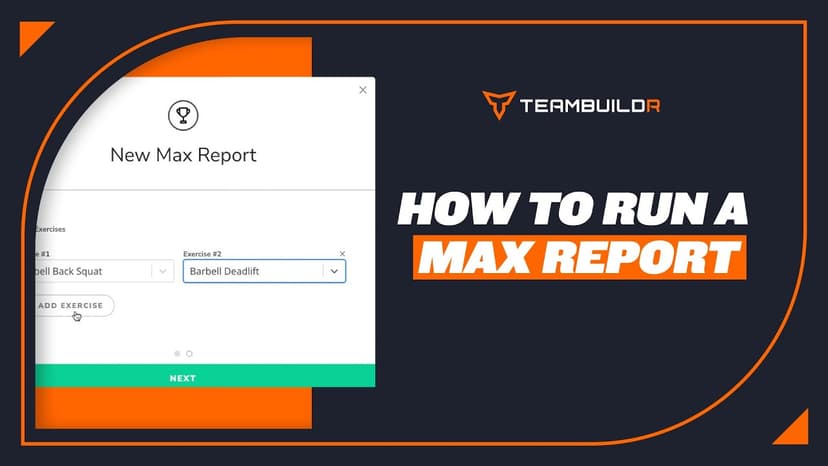
FreeHow to Run a Max Report
A short video walkthrough of how to Run a Max Report from the TeamBuildr knowledge base.
Video · 4 min
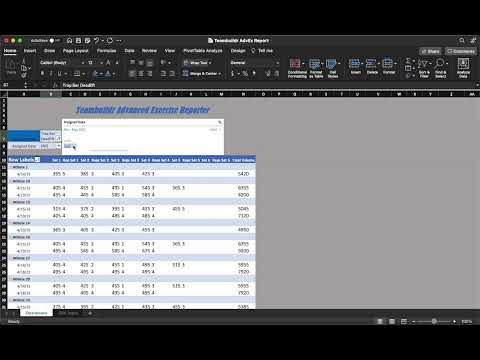
FreeSingle Exercise Reporting System
This report is built by our In-House Sports Scientist - Teofe Ziemnicki, who advises all TeamBuildr customers on the Platinum Pro plan with custom reports, dashboards, data collection and visualization. In this report, coaches can easily take the CSV reports from TeamBuildr and c
Spreadsheet · 2 walkthroughs
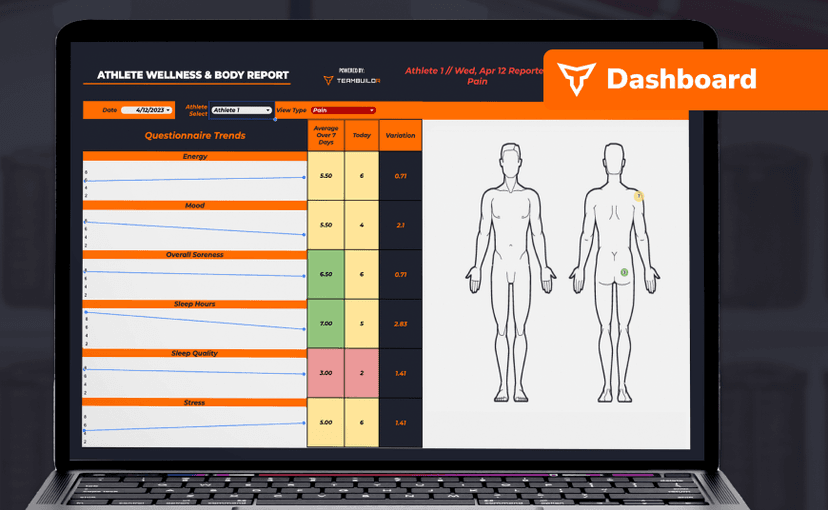
Free · sign upAthlete Wellness & Body Report
Track daily wellness check-ins and body composition in one sheet. Copy the template and follow the walkthrough to connect your athlete responses, then use the report to spot who is trending the wrong way before it costs you a session.
Spreadsheet · 2 walkthroughs
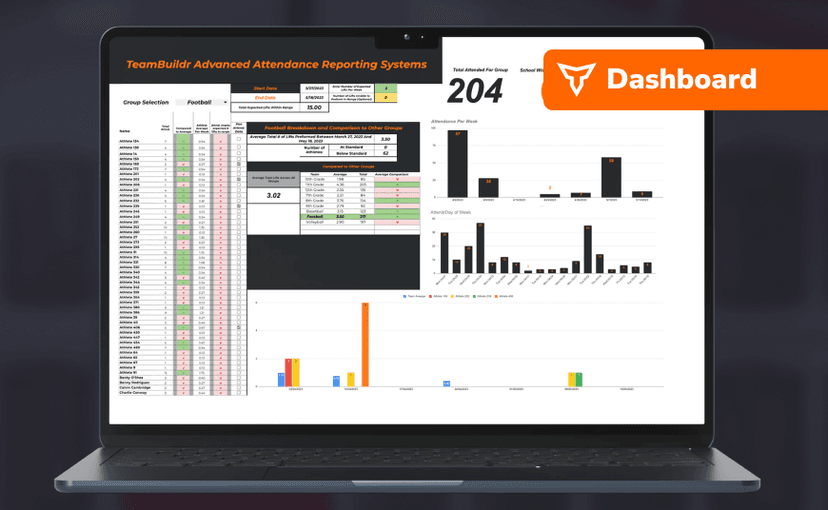
Free · sign upAdvanced Attendance Report
Attendance tracking for PE and weights classes that goes past a headcount. Copy the template and it totals participation per student over any window, ready to drop into a grade or a report to an administrator.
- Format
- Walkthrough
- Brand

- Category
- Reporting
- Topics
- Platform & Admin