Sub Calendar Tips and Tricks
A short video walkthrough of sub Calendar Tips and Tricks from the TeamBuildr knowledge base.
Watch or read
13 minutes across 4 chapters. Click any chapter or timestamp to jump straight there.
4 chapters
In this video, we're going to take a look at how to manage our sub calendars as they relate to our parent calendars. We're going to go over how to set them up, how to edit them, and different things to consider when you're using a sub calendar versus a parent calendar. So right now we are in our manage calendars page, which is underneath our coach tools and in manage calendars. From here, we're going to create a new calendar by hitting the green plus icon. We're going to label this calendar as just a test calendar for right now, and we are going to make this a sub calendar of our athletic development parent calendar. We can also select the workout display for this calendar, and this allows us to decide how many workouts we want our athletes to see.
So whether or not we want them to see everything that's programmed in this calendar, or we want them to only see the current week from Sunday to Sunday or the current day of training. It's important to note when you select this workout display that the athlete can always look at past workouts, but if you have this set to one week or current day, they can't look beyond that into the future. So we're going to create our calendar, and now we are going to head over to our calendar tab and build our calendar out. So the first thing we're going to do is select calendar, and we're going to find our test calendar. Now, because this test calendar is a sub calendar, anything that has been programmed.
Inside of the athletic development parent calendar is going to automatically be placed into that test calendar. So when we select this calendar, we'll pull it up and we can see that there's already a good bit of programming inside of this calendar. An important thing to note in the sub calendar are these icons right here. So this calendar icon tells us that this exercise is stemming from the parent calendar. If we go to edit an exercise by clicking the pencil icon right here, let's say we simply want to be able to make changes to the power jerk inside of the sub calendar itself. We can select the checkbox and then this icon then changes to show that is now a swapped exercise and it is something that is being edited in the.
Sub calendar itself. So now if we take this power jerk and we move it down all the way to the end, it's going to remain at the top of the parent calendar, but it's going to now be in the bottom of the workout for the sub calendar. So now because this exercise has been edited in the sub calendar and we've moved it down to the bottom of the workout, if we go back to our parent calendar, we'll see that the power jerk is still in the same spot because this is part of the parent calendar and we've edited that other exercise to reflect that it's now being moved around in the sub calendar.
Heading back to our sub calendar. There are a couple of different reasons why a coach may choose to use a sub calendar versus a parent calendar. The big, the big point of emphasis with the sub calendar is that this is meant for small changes to be made in the program. So the parent calendar is essentially your, the bulk of your programming. That's where the main program is going to live. That sub calendar is a way for coaches to be able to change one or two exercises without having to change the entirety of the program or create a new, a new calendar. This is something we'll often see if a coach is programming for different levels. So if they're doing the majority of their programming in the parent calendar.
Still stuck? Contact support →
Read next
More in Manage Calendars
Walkthrough
FreeCreating & Managing Calendars
A new calendar can be created on the Manage Calendars page. CREATING THE CALENDAR Locate the "Add New Calendar" box at the top of the page Type a name for your new calendar into the input box Select a parent calendar …
Also in Platform & Admin

Walkthrough
FreeAdvanced Programming on the Calendar
A short video walkthrough of advanced Programming on the Calendar from the TeamBuildr knowledge base.

Walkthrough
FreeAdvanced Programming on the Calendar (New Build)
A short video walkthrough of advanced Programming on the Calendar (New Build) from the TeamBuildr knowledge base.
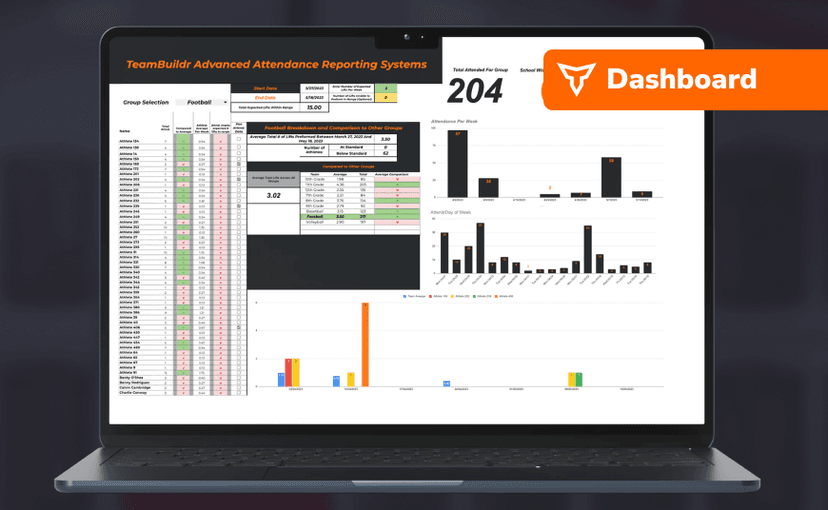
Spreadsheet · 2 walkthroughs
Free · sign upAdvanced Attendance Report
Attendance tracking for PE and weights classes that goes past a headcount. Copy the template and it totals participation per student over any window, ready to drop into a grade or a report to an administrator.
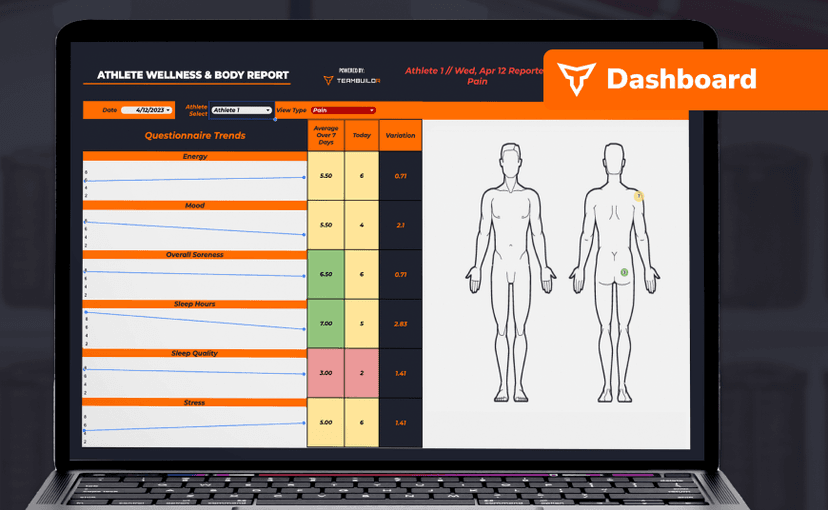
Spreadsheet · 2 walkthroughs
Free · sign upAthlete Wellness & Body Report
Track daily wellness check-ins and body composition in one sheet. Copy the template and follow the walkthrough to connect your athlete responses, then use the report to spot who is trending the wrong way before it costs you a session.
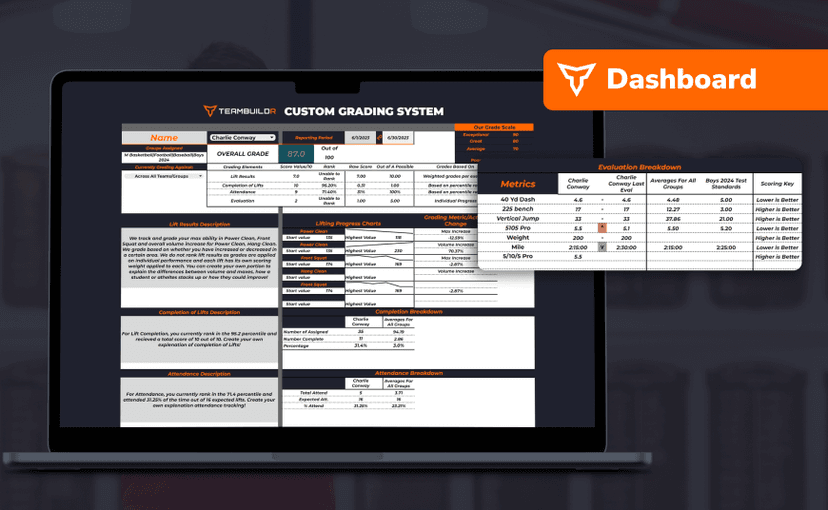
Spreadsheet · 7 walkthroughs
Free · sign upCustom Grading System
A ready-made grading spreadsheet for PE and weights classes. Copy the template, connect it to your TeamBuildr data, and it calculates an overall grade from attendance, workout completion and evaluations. Seven short videos walk you through every step of the setup.
- Format
- Walkthrough
- Brand

- Category
- Manage Calendars
- Topics
- Platform & Admin