Connecting Your TeamBuildr to Stripe
This guide will outline how to connect or create your Stripe account with your TeamBuildr account. Log into TeamBuildr. Click on the Payments Tab at the top of your screen. Select "Create Reseller Account". When conne…
This guide will outline how to connect or create your Stripe account with your TeamBuildr account.
- Log into TeamBuildr. Click on the Payments Tab at the top of your screen.
- Select "Create Reseller Account".
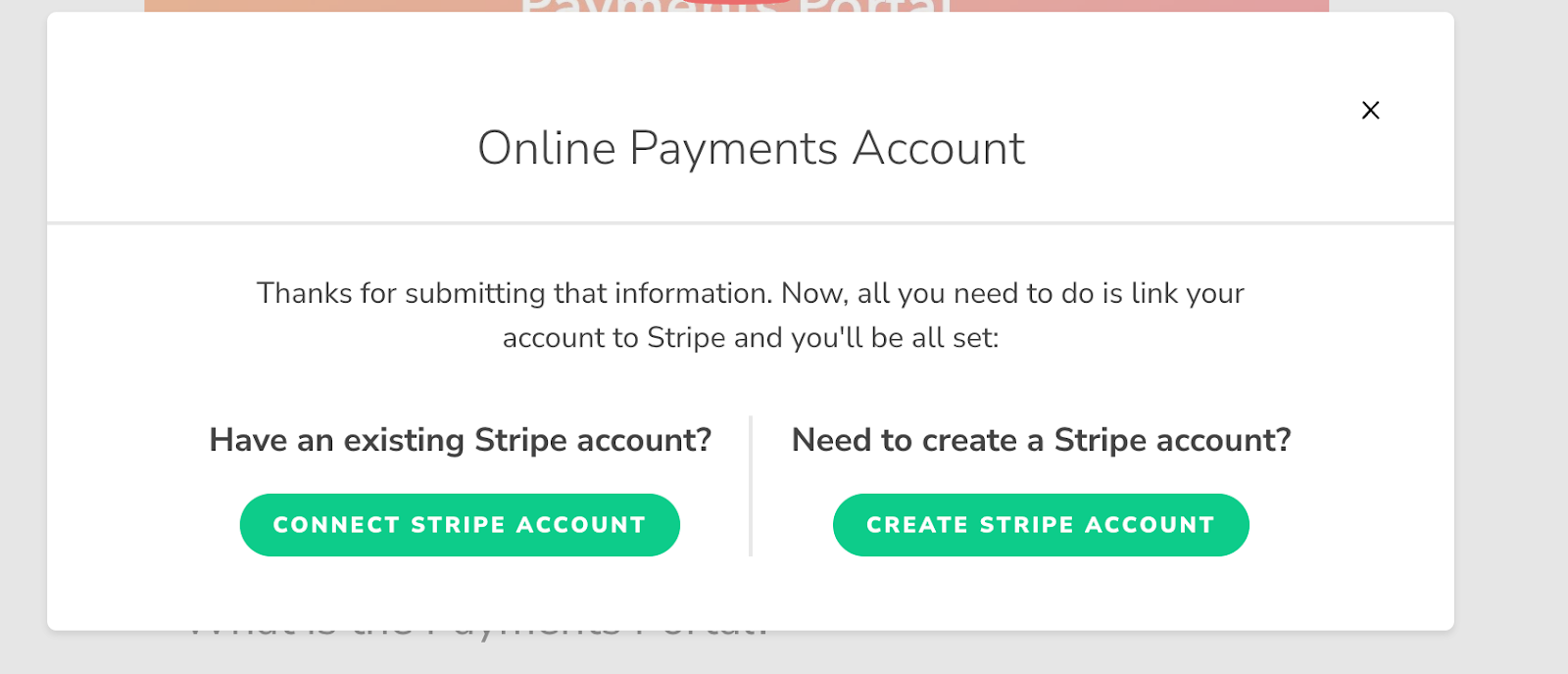
- When connecting Stripe to TeamBuildr, there are 2 options:
Option 1: If you already have a Stripe account, you must link that existing Stripe account to TeamBuildr by clicking the “Connect Stripe Account” button which sends you a one-time URL to sign into your existing Stripe account. Then, confirm that you want to grant access to TeamBuildr.
Option 2: For those who do not have a Stripe account, you must create a new Stripe account by selecting “Create Stripe Account.”
- When connecting Stripe to TeamBuildr, there are 2 options:
- Individual: You will need to provide your social security number.
- Organization: You will need to provide your Employer Identification Number (EIN).
- Enter your phone number and email. Stripe will be texting you a confirmation code, so keep your phone around.
- From here, you will be prompted to enter some personal details. Once you have completed this, click next.
- Last, you will be able to choose where your Payouts are sent to. Stripe allows you to choose between your checking account or debit card. Once you complete this you will be taken back to the payments dashboard.
Watch or read
4 minutes across 3 chapters. Click any chapter or timestamp to jump straight there.
3 chapters
Process of creating or linking a Stripe account. So when you click create reseller account, you'll be asked to link a Stripe. If you own a Stripe account, you simply have to connect it. If you do not, this is the process for creating it. You'll want to enter your mobile number and an email address. In this case, I'm going to use test information from Stripe. In your case, you want to use live information from yourself. So when I type in this email, we'll go next.
Stripe will send you a six digit verification code via text message. So check your smartphone for that. In our case, we're using a test code. And then you want to enter the country and the type of entity that you are. If you are doing this on behalf of a company, a private training facility, you want to click company. If you are doing this as an individual, sole proprietor, or even if you've created an LLC for yourself, you'll click the first one. Okay, next we'll have to provide some more information to Stripe, including legal name. I'll go ahead and put in Huwett Tomlin, date of birth.
Still stuck? Contact support →
Read next
More in Getting Started - Payments Portal
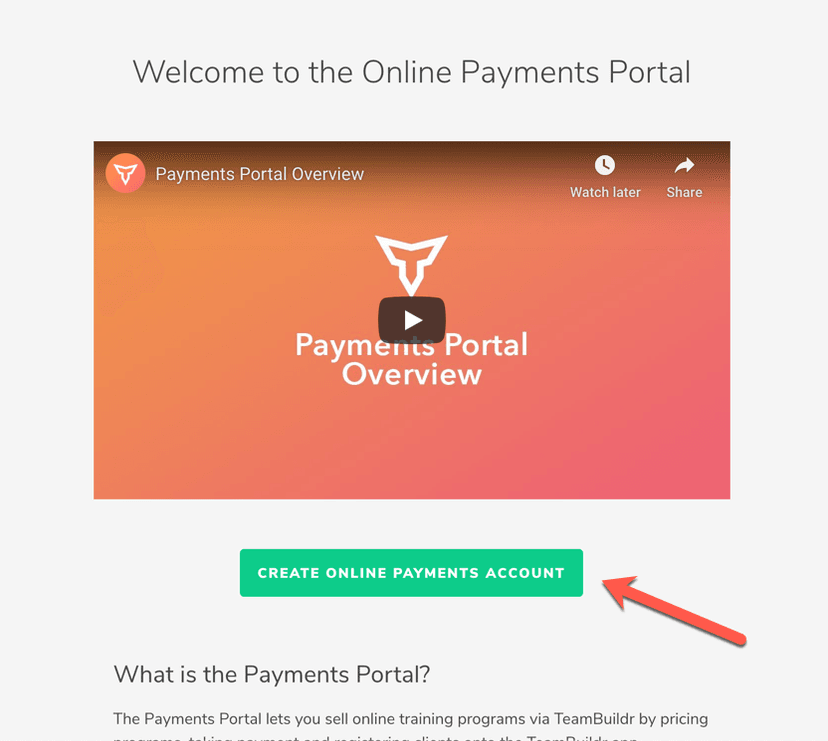
Walkthrough
FreeSetting Up Your Online Payments Account
If you have not set up your Online Payments yet, you will see an informational page with an intro video as well as some FAQs about the Online Payments portal. To begin, you will need to click the " Create Reseller Acc…
Also in Platform & Admin
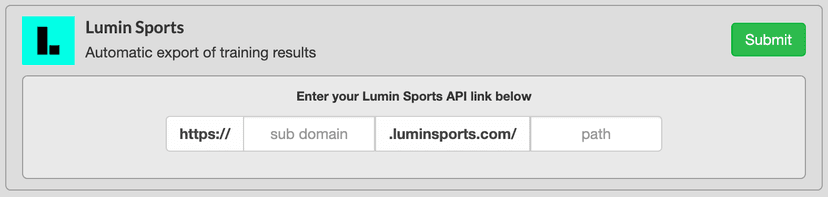
Walkthrough
FreeConnecting Lumin with TeamBuildr
Enabling the Integration Firstly, activate the connection from you team’s TeamBuildr account. On your TeamBuildr account, navigate to settings , then click on the Integrations section in the sidebar. Now enter your te…
Walkthrough
FreeConnecting Kinduct with TeamBuildr
Enabling the Integration On your Kinduct platform, click the Admin link on the side menu and click Data Management Click API Integrations , and then click Create Integration Choose TeamBuildr from the dropdown menu He…

Audio · 47 min
FreeEpisode #23: Using TeamBuildr to Leverage your Online Training and Cater to your Audience with Erica Suter
Erica Suter on running online training as a real business. Using the payments portal, keeping remote athletes accountable, and building an audience that converts.
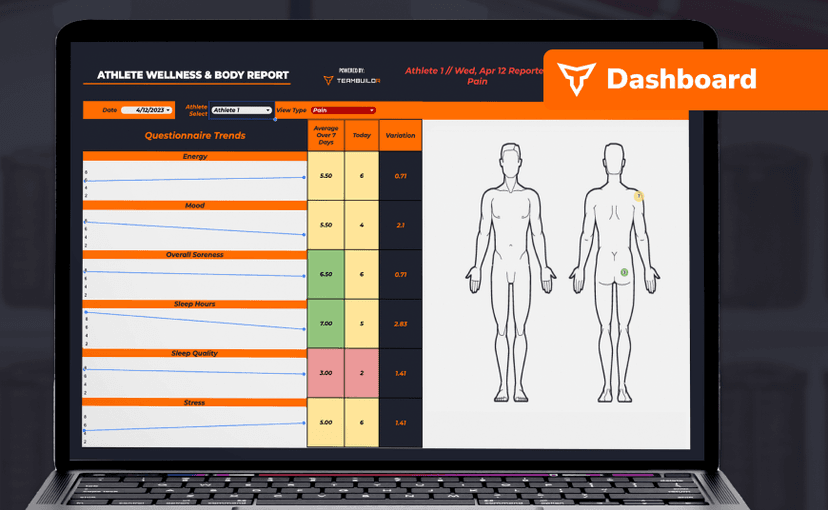
Spreadsheet · 2 walkthroughs
Free · sign upAthlete Wellness & Body Report
Track daily wellness check-ins and body composition in one sheet. Copy the template and follow the walkthrough to connect your athlete responses, then use the report to spot who is trending the wrong way before it costs you a session.
Spreadsheet · 7 walkthroughs
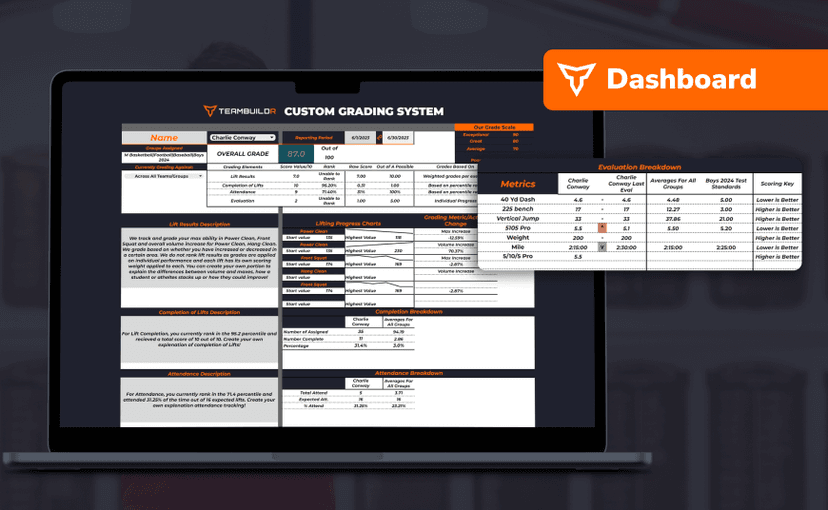
Free · sign upCustom Grading System
A ready-made grading spreadsheet for PE and weights classes. Copy the template, connect it to your TeamBuildr data, and it calculates an overall grade from attendance, workout completion and evaluations. Seven short videos walk you through every step of the setup.
- Format
- Walkthrough
- Brand

- Category
- Getting Started - Payments Portal
- Topics
- Platform & Admin