Adding a New Coach in TeamBuildr
A short video walkthrough of adding a New Coach in TeamBuildr from the TeamBuildr knowledge base.
Watch or read
4 minutes across 3 chapters. Click any chapter or timestamp to jump straight there.
3 chapters
All right, so we're going to talk a little bit about adding a coach into Team Builder and also the permissions that we are able to allow or disallow. So obviously we'll go to coach tools, we're going to go to manage users, and on the left hand side we're going to click this coaches tab over here. So the options to add a coach are similar to the ones when you add an athlete. You can add them manually down here by hitting this plus sign. You could also create an easy join for coaches and then you could also upload an Excel spreadsheet. But I think the most common thing to do is to add someone manually we're doing here. So let's go ahead and add a coach. This will.
Be our John Doe. And then when you type in their email, remember that this is going to send them a registration email. So tell them to check their inbox and accept that. All right, so we'll just say john at teambuilder.com. You can put in their phone number, you can create a password for the coach if you want to. But if you leave it blank, we will send them a random password, which could be a little bit easier. And then here we're going to get into the settings a little bit. Okay, so if you have a strength coach, and they need to have access to everything in regards to programming and so on, then you will give them access to their specific group and their specific calendars. Okay, so if they.
Still stuck? Contact support →
Read next
Also in Platform & Admin
Walkthrough
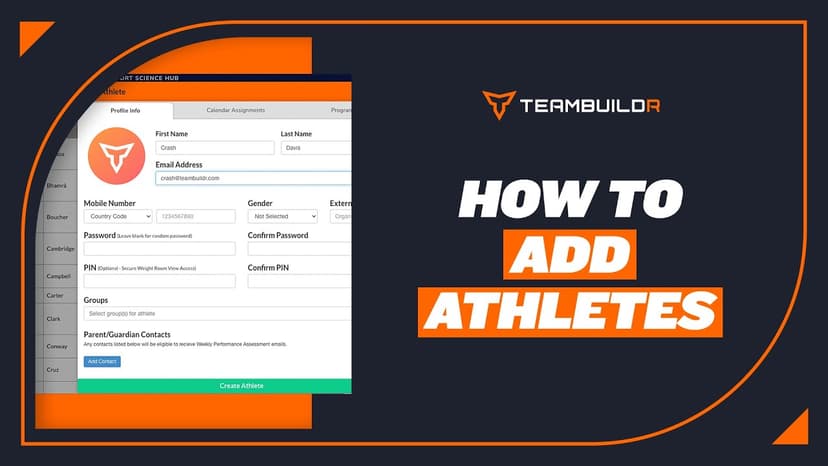
FreeAdding a New Athlete
A short video walkthrough of adding a New Athlete from the TeamBuildr knowledge base.

Walkthrough
FreeAdding a new exercise on Build (New Build)
A short video walkthrough of adding a new exercise on Build (New Build) from the TeamBuildr knowledge base.

Walkthrough
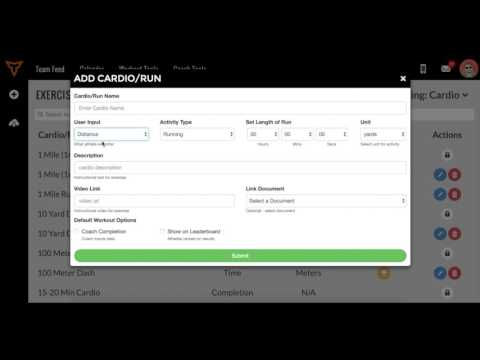
FreeAdding Jumps and Throws in the Exercise Database (Vertical, Broad, etc.)
A short video walkthrough of adding Jumps and Throws in the Exercise Database (Vertical, Broad, etc.) from the TeamBuildr knowledge base.
Video · 1 min
FreeAdding Jumps or Throws in Exercise Database (Vertical, Broad, etc.)
Adding Jumps or Throws in Exercise Database (Vertical, Broad, etc.) — from the TeamBuildr YouTube channel.
Spreadsheet · 2 walkthroughs
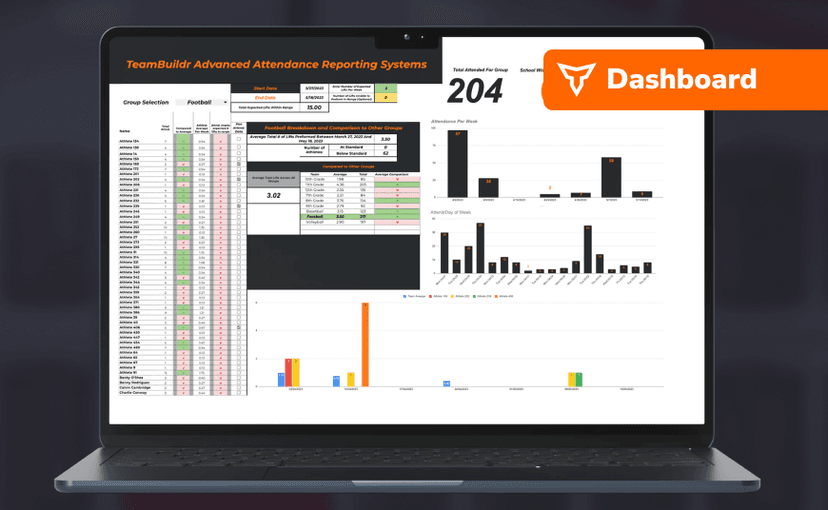
Free · sign upAdvanced Attendance Report
Attendance tracking for PE and weights classes that goes past a headcount. Copy the template and it totals participation per student over any window, ready to drop into a grade or a report to an administrator.
Spreadsheet · 2 walkthroughs
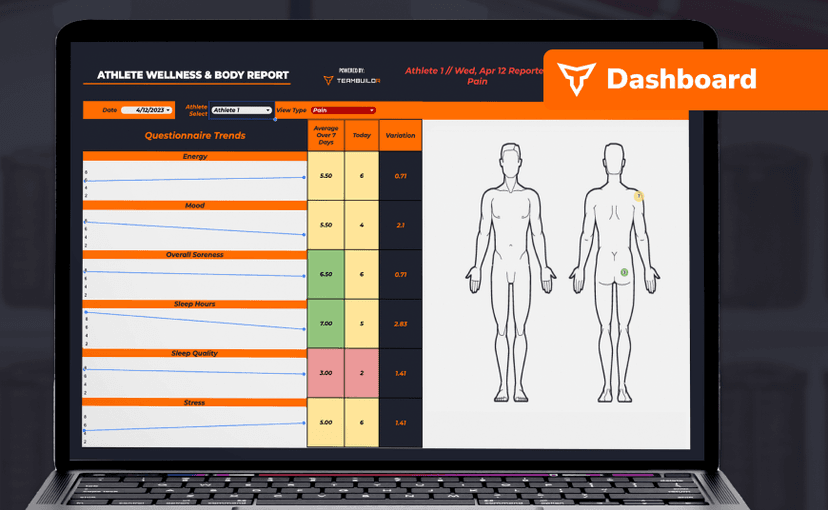
Free · sign upAthlete Wellness & Body Report
Track daily wellness check-ins and body composition in one sheet. Copy the template and follow the walkthrough to connect your athlete responses, then use the report to spot who is trending the wrong way before it costs you a session.
- Format
- Walkthrough
- Brand

- Category
- Team Management
- Topics
- Platform & Admin