Adding a new exercise on Build (New Build)
A short video walkthrough of adding a new exercise on Build (New Build) from the TeamBuildr knowledge base.
Watch
Transcript
In this support video, we'll be covering how you can add an exercise to a calendar or a program within build. Here we can hover over this add exercise option. You can also use the keyboard shortcut here using either control N or command N depending on your device type. Otherwise, we can select add exercise. If you want to use a variation from your database, you can sort through this. It'll be sorted alphabetically and will include all exercise types including lifts, SAQC variations, notes, questionnaires, and more. You can also include session breaks, rest times, or videos by selecting those options or searching them here. If you know which variation you want to use, if I'm going to do a barbell back squat, I can search that and select that option. From here, I'll be prompted to select the amount of sets and reps. So if I go three sets and then each set's amount of the same amount of reps, I can just input a single number there. But if I want to change that up for each set, if I wanted to go 10, 8, 6, I can separate that with commas here. If I want to add any additional properties, including those listed here, I can do that as well. So if I want to add percentages for these movements, I can again input a single number or I can differentiate that by commas for the different sets. I also in these three dots here can either toggle on or toggle off some additional options. Once I have all my settings, how I want to add them, I can I want to make sure that I click this green add button to make sure that that exercise is actually uploaded to the calendar program for that day. If I don't want to use a variation that's already in my database, I can also create a brand new exercise by clicking this option at the bottom. Here I can input the name of the exercise and then sort through the different types of exercises. So you can see as I select a new variation, what I can input will change. But once you have everything set up, you can then save and add that exercise to your calendar for that day. And you can also choose whether you want to save that variation to your database or not. Another way you can add exercises is by using this dumbbell icon on the left hand side. When we select that we'll see the different categories for each type of exercise. Or if we scroll to the bottom, you can also add session breaks, rest times or videos. And you can add these just by dragging and dropping onto the calendar or program for that day. Otherwise, if I want to let's say add an SAQ plus C variation, I can click into that again, see each exercise in the database order alphabetically. Or I can search for an exercise at the top here. If I want to add a two mile run to my program for that day, I can just drag and drop that and place that where I want to in the workout. I can again add any properties or additional options as needed. And once I have that set up, I want to make sure I again click that green add button, and then I'm good to go.
Still stuck? Contact support →
Read next
Also in Platform & Admin
Walkthrough
FreeAdding Jumps and Throws in the Exercise Database (Vertical, Broad, etc.)
A short video walkthrough of adding Jumps and Throws in the Exercise Database (Vertical, Broad, etc.) from the TeamBuildr knowledge base.
Walkthrough
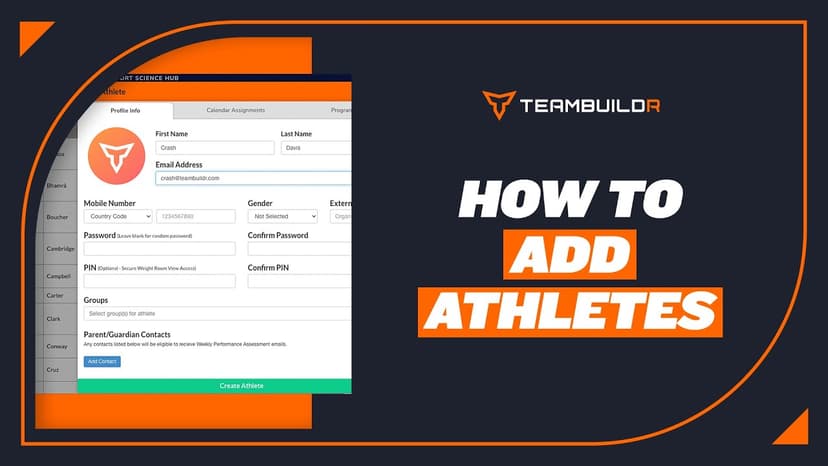
FreeAdding a New Athlete
A short video walkthrough of adding a New Athlete from the TeamBuildr knowledge base.
Walkthrough
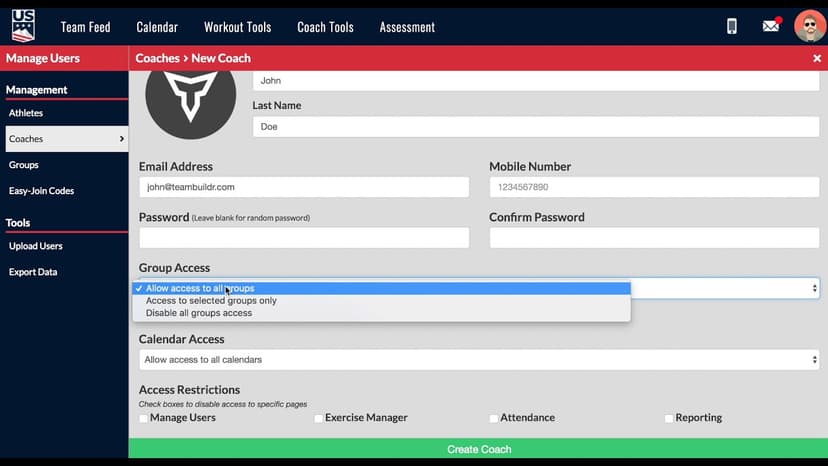
FreeAdding a New Coach in TeamBuildr
A short video walkthrough of adding a New Coach in TeamBuildr from the TeamBuildr knowledge base.
Video · 1 min
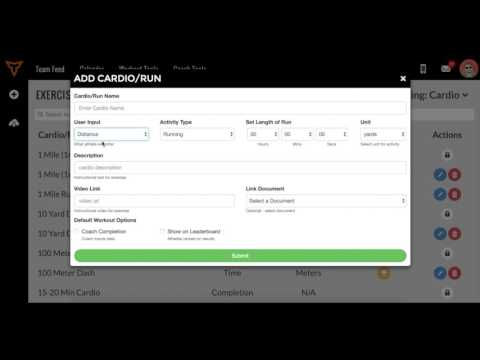
FreeAdding Jumps or Throws in Exercise Database (Vertical, Broad, etc.)
Adding Jumps or Throws in Exercise Database (Vertical, Broad, etc.) — from the TeamBuildr YouTube channel.
Spreadsheet · 2 walkthroughs
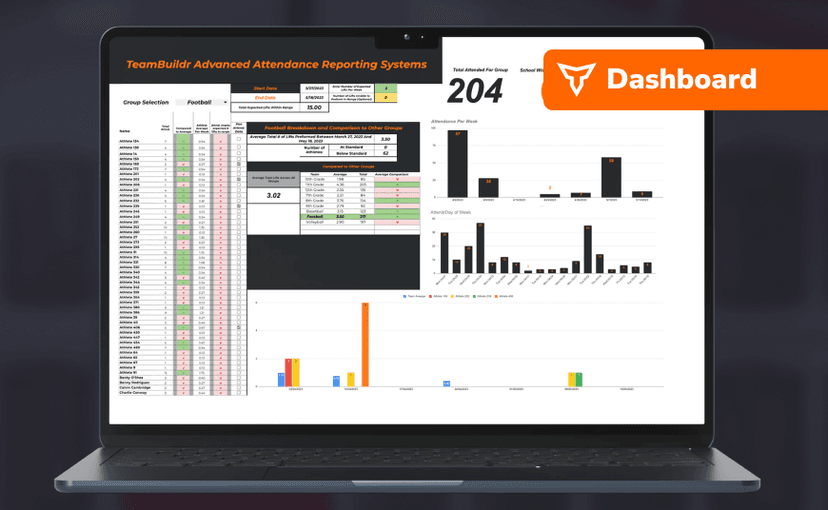
Free · sign upAdvanced Attendance Report
Attendance tracking for PE and weights classes that goes past a headcount. Copy the template and it totals participation per student over any window, ready to drop into a grade or a report to an administrator.
Spreadsheet · 2 walkthroughs
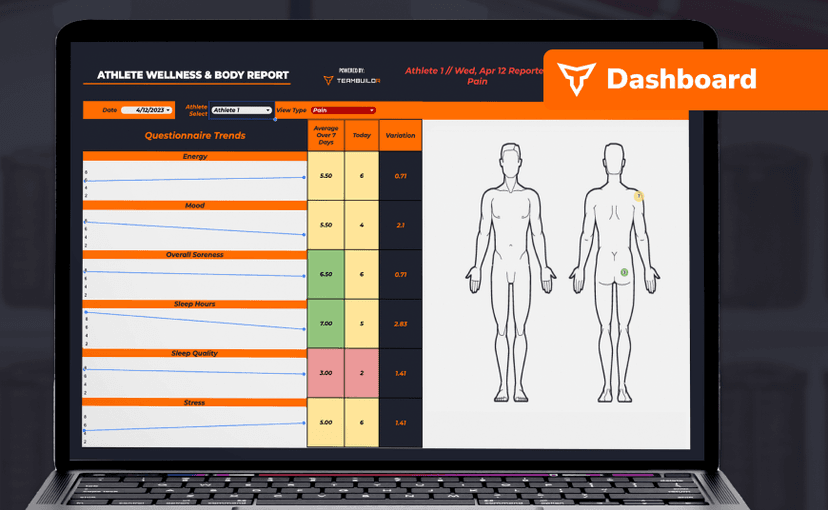
Free · sign upAthlete Wellness & Body Report
Track daily wellness check-ins and body composition in one sheet. Copy the template and follow the walkthrough to connect your athlete responses, then use the report to spot who is trending the wrong way before it costs you a session.
- Format
- Walkthrough
- Brand

- Category
- BUILD
- Topics
- Platform & Admin