Ultimate Guide to Copying in Build
Every way to copy in Build: a day to another date or calendar, a day repeated across a date range, a whole week, or a few selected exercises, plus the Cmd/Ctrl+C shortcut. Four minutes.
Watch or read
4 minutes across 3 chapters. Click any chapter or timestamp to jump straight there.
3 chapters
In this support video we'll be covering how you can copy and paste workouts or exercises within build in the top right section here we'll see the copy button this will be visible in week view as well as in month view in week view it will just be this symbol here in month view it will also appear that way if we jump back here to debut we can jump to a date with workouts click on copy we can do a single date or a date range copy so if i just do a single date monday september 7 i can then copy to a single date if i want to move this workout to tuesday i also just need to select the calendar or calendars i'm copying to i can select multiple or i can even go to an athlete.
Level calendar and copy that to athlete level calendars as well i will keep this on the basketball calendar once i have my calendar selected i can move on i've got my date selected i can also include workout titles and colors i can choose if i want to place this at the bottom or top of a workout and then if i have programming on that date i'm copying to i can choose whether or not i want to clear that finally you can just select the item types so by default it will be all types of exercises and workout items but you can choose to unselect any of these as needed once that's done you can copy that workout you'll see if i jump to tuesday that same workout is copied there if i jump.
Still stuck? Contact support →
Read next
Also in Platform & Admin
Walkthrough
FreeSetting Up a New TeamBuildr Account
The first four things to do in a brand-new account, in the order that actually works: build your calendar structure, get athletes in, learn the Build screen, then add exercises to a day. Start here if you have just been given a login and nothing is set up yet.
Walkthrough
FreeUltimate Guide to Copying Workouts on the Calendar
A short video walkthrough of ultimate Guide to Copying Workouts on the Calendar from the TeamBuildr knowledge base.
More in BUILD
Walkthrough
FreeUltimate Guide to Copying (New Build)
A short video walkthrough of ultimate Guide to Copying (New Build) from the TeamBuildr knowledge base.
Spreadsheet · 2 walkthroughs
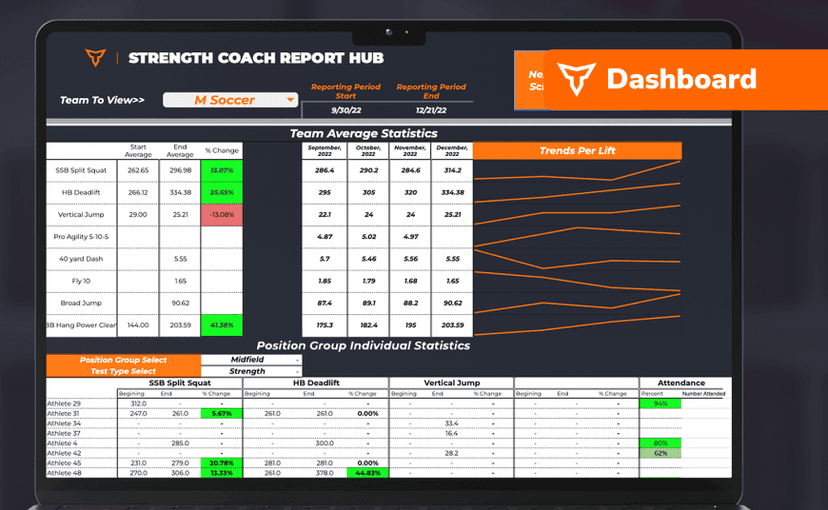
FreeSport Coach Dashboard
A shared view for sport coaches who want to see what is happening in the weight room without learning the whole platform. Copy the template and it surfaces the handful of numbers they actually ask about.
Spreadsheet · 2 walkthroughs
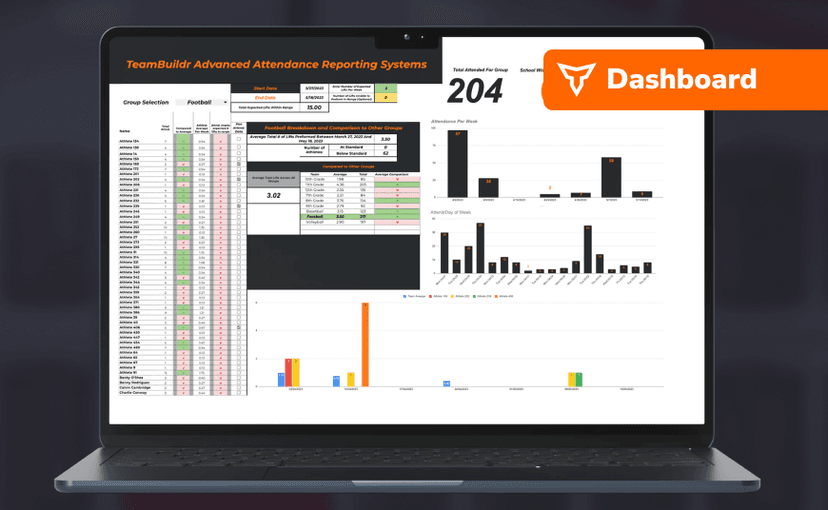
Free · sign upAdvanced Attendance Report
Attendance tracking for PE and weights classes that goes past a headcount. Copy the template and it totals participation per student over any window, ready to drop into a grade or a report to an administrator.
Spreadsheet · 2 walkthroughs
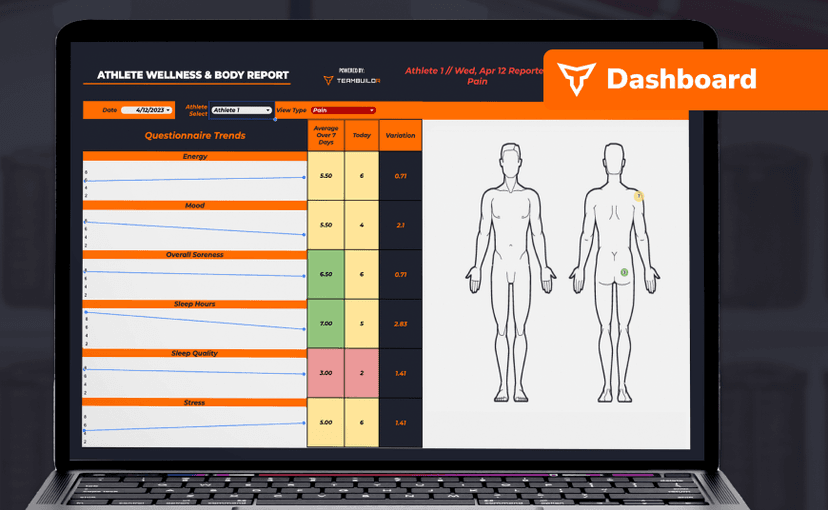
Free · sign upAthlete Wellness & Body Report
Track daily wellness check-ins and body composition in one sheet. Copy the template and follow the walkthrough to connect your athlete responses, then use the report to spot who is trending the wrong way before it costs you a session.
- Format
- Walkthrough
- Brand

- Category
- BUILD
- Topics
- Platform & Admin