Multi View in Build (New Build)
A short video walkthrough of multi View in Build (New Build) from the TeamBuildr knowledge base.
Watch or read
2 minutes across 3 chapters. Click any chapter or timestamp to jump straight there.
3 chapters
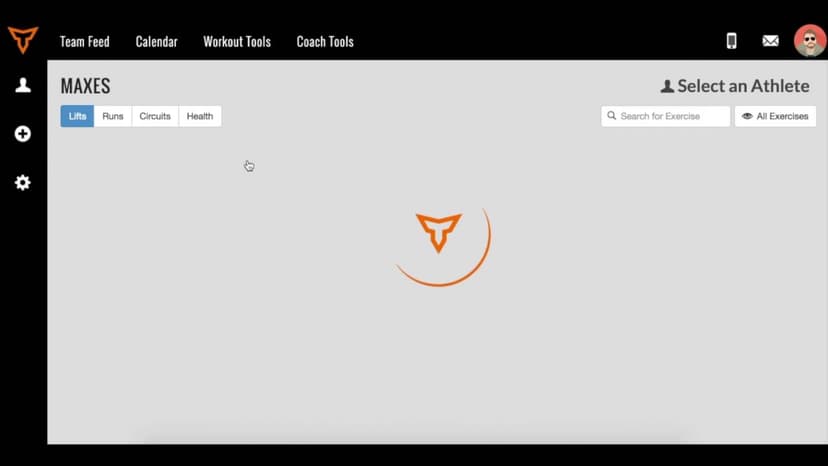
We'll be going over how to use the week view, month view, and consecutive day view inside the new build feature inside of Team Builder. So we will start by going over to our calendar that we want to select after we've gone into the build feature. Up at the top, you'll notice that we have a couple of options. We're able to see today, or I can click to a new day if I wish to open up the calendar icon and swap over to a different workout day.
So I'm going to go over to February 2nd right here and pull this day up. From there, I can then go into these options right here with this drop-down menu. Once I have this drop-down menu and I want to swap from either today or in seeing a single day, I can also view the week. In week view, you'll have a couple of different options. Right down below, you'll see that you can see every day, or I can select a single day and bring up the consecutive day view.
Still stuck? Contact support →
Read next
Also in Platform & Admin
Walkthrough
FreeMulti Rep Testing in TeamBuildr - Explained
A short video walkthrough of multi Rep Testing in TeamBuildr - Explained from the TeamBuildr knowledge base.
Walkthrough
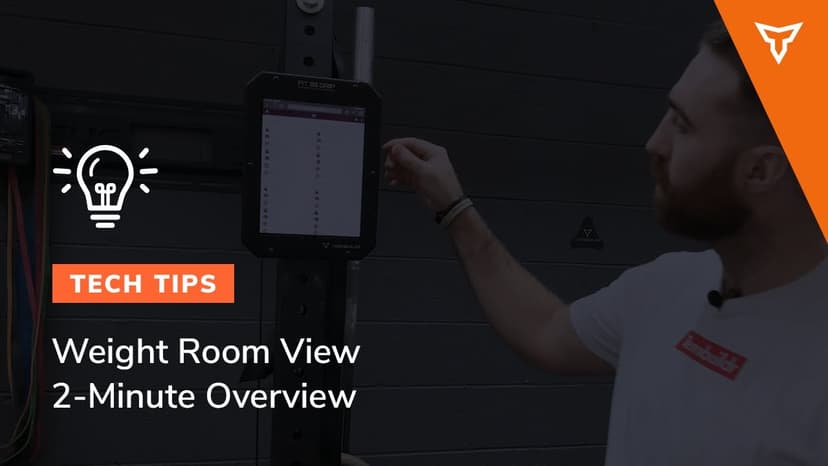
Free2-Minute Overview to Weight Room View
A short video walkthrough of 2-Minute Overview to Weight Room View from the TeamBuildr knowledge base.

Walkthrough
FreeAthlete Account Switching Mobile View
A short video walkthrough of athlete Account Switching Mobile View from the TeamBuildr knowledge base.
Spreadsheet · 2 walkthroughs
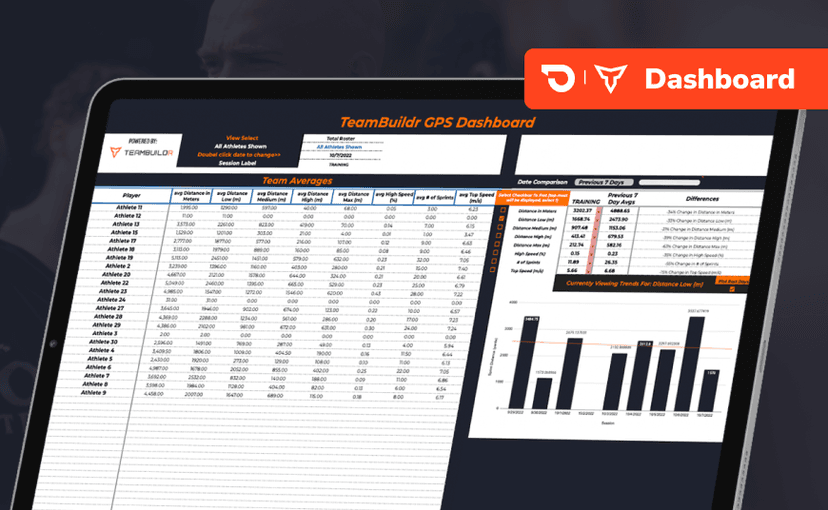
Free · sign upGPS Dashboard
Turn raw GPS exports into something you can actually read. Copy the template, follow the two setup videos, and you get a running view of load and distance per athlete. Built for coaches new to GPS or drowning in the files it produces.
Spreadsheet · 2 walkthroughs
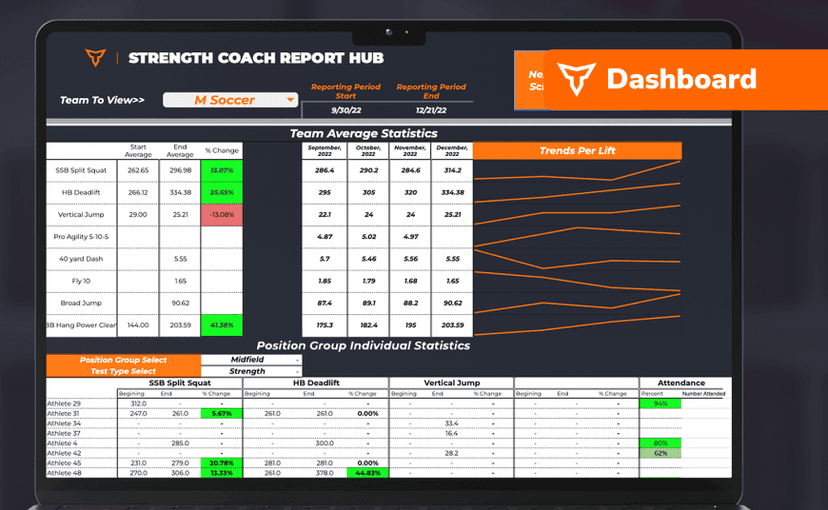
FreeSport Coach Dashboard
A shared view for sport coaches who want to see what is happening in the weight room without learning the whole platform. Copy the template and it surfaces the handful of numbers they actually ask about.
Spreadsheet · 2 walkthroughs
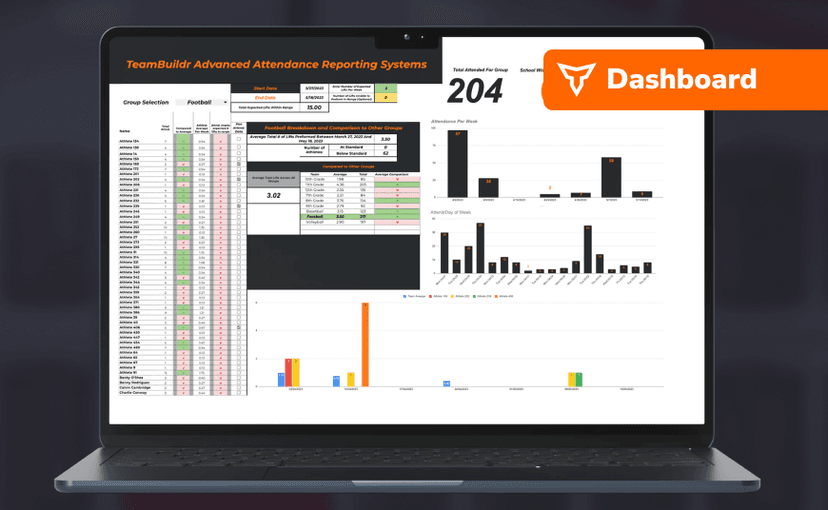
Free · sign upAdvanced Attendance Report
Attendance tracking for PE and weights classes that goes past a headcount. Copy the template and it totals participation per student over any window, ready to drop into a grade or a report to an administrator.
- Format
- Walkthrough
- Brand

- Category
- BUILD
- Topics
- Platform & Admin