Connecting GymAware to TeamBuildr
Pair a GymAware unit with your account so bar-velocity data lands against the right athlete and the right lift on its own. Two parts: making the connection and reconciling the two exercise lists, then using the device on the floor. Needs the Platinum Pro plan.
What you’ll learn
- Find your GymAware API account ID and token, and where each goes in TeamBuildr's integration settings
- Merge imported GymAware exercises into ones you already have, so a bench press logs against your bench press rather than a duplicate
- Match athletes across both systems. The email address is what pairs them
- Log a set with or without a workout programmed, and force a sync instead of waiting for the hourly one
- Pull set-by-set speed and power out with a raw data report
Step-by-step setup
2 short walkthroughs covering the whole configuration.
2 steps
Alright, so this video is going to show you how to connect your GymWare account into your TeamBuilder account. To start, we're going to click the profile picture in the top right and go over to our settings. And over on the left hand sidebar, you're going to see an integrations tab under organizations. Now keep in mind, you do have to have the Platinum Pro plan for these integrations to actually be unlocked. So if they are, you're going to see this blue connect button here to the right of the integration.
So in this case, let's click connect on GymWare. And you're going to see it asks you for an account ID and a token. Now these two items we actually have to get from the GymWare interface itself. So I'm logged into my GymWare admin panel. I'm going to go over to the settings tab here and then click API underneath that. If you go four items down, you're going to see an API account ID. You're going to want to copy this. And let's paste that in the account ID area.
And then next we need to get to token. So for that one, you'll see this section that says API tokens. In this case, I'll probably just write TeamBuilder here in the description to say what the token is for. And then once you type that, you hit save and it generates this token here for you. So let's copy that and put that in here. Now when I hit submit, it's actually going to come up saying that it's importing my GymWare exercises. And when it's done, it's going to tell you it's connected to the GymWare account ID that you supplied.
So once that's done, let's go over to coach tools and exercises. Now this is my master database. Anything I've already programmed myself will be in here. The GymWare exercises will actually be in the imported exercises section. And you'll see a GA next to anyone that we pulled from there. These are going to be exercises that either you created within the GymWare application or are just GymWare default. So there's really two things that you can do from here. The first is going to be merging.
So for example, let's say I already have a bench press in my master exercise database. If I hit merge here, I go ahead and select bench press. And then I actually want to use all the information I've already put in on my end. And I'm going to go ahead and merge them. So now anytime you perform bench press on the GymWare, it'll sync with the one you already have. In another situation, let's say I want to import the back squat. And maybe I don't actually have one of these in my account yet.
In this case, I'm going to hit the move button. And I'm just going to go ahead and move this right into my master database. Now you can go through this entire list if you want to, but I would just recommend hitting the exercises that you use on GymWare. And later on, if you want to come in and import some more, you can if you notice that you're using some different exercises. So now let's go back to master. You're going to see the bench press is still here.
The one I originally built and I merged the GymWare exercise into. And then the back squat is also here. So once you've done this, the next step is to actually manage the athletes. In most cases, you'll probably already have your athletes in Team Builder and they all do require an email address. And this is the key to syncing them in GymWare as well. So let's go ahead and take this user. I'm using test.gymware.com. And we'll go back into the GymWare interface.
In this case, we're going to go to manager and then athletes. And we'll click this register athletes down here at the bottom right. And in this case, I'm just going to do test user. And I'm going to put this email address in. And let's save this. And some of you might already actually have a user set up. And if that's the case, you just need to make sure that the email address that is in here matches what's in Team Builder. That's the key to getting everything to sync.
So once I've done that, I'm actually ready to go. There's going to be another video on actually using the GymWare device in the weight room and syncing it to the athletes' calendars to show that they completed it.
Still stuck? Contact support →
Read next
More in Integrations
Walkthrough
FreeConnecting VALD Force Plates and Timing Gates to TeamBuildr
Connect VALD force plates and SmartSpeed timing gates so their data flows into an athlete's profile. Get your region and team ID from your VALD representative before you start. The connection will not complete without them.
Also in Platform & Admin
Walkthrough
FreePerch Integration Guide
In order to access this integration, you must be on the Platinum Pro subscription plan. Connecting Perch Account To connect an Perch account to TeamBuildr, a coach will need to input the following information on the I…
Walkthrough
FreeEnode Integration Guide
In order to access this integration, you must be on the Platinum Pro subscription plan. Connecting Vmaxpro Account To connect an Vmaxpro account to TeamBuildr, a coach will need to input the following information on t…
Also in Technology & Integrations
Video · 2 min
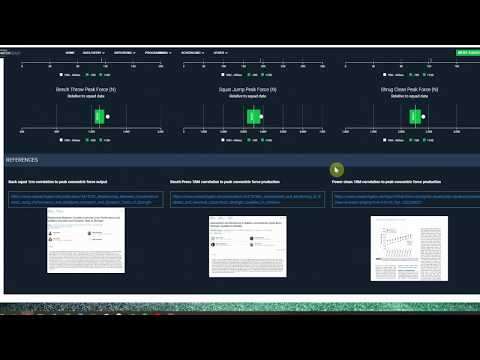
FreeSmartabase S&C dashboard integrating data from TeamBuildr & GymAware.
Smartabase S&C dashboard integrating data from TeamBuildr & GymAware. — from the TeamBuildr YouTube channel.
Also in Testing & Monitoring
Video · 2 min
FreeHow to Connect Your Vald Integration
How to Connect Your Vald Integration — from the TeamBuildr YouTube channel.
Video · 4 min
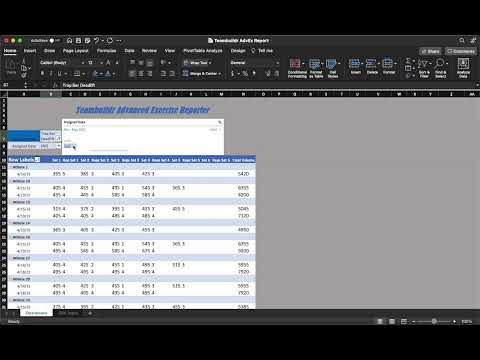
FreeSingle Exercise Reporting System
This report is built by our In-House Sports Scientist - Teofe Ziemnicki, who advises all TeamBuildr customers on the Platinum Pro plan with custom reports, dashboards, data collection and visualization. In this report, coaches can easily take the CSV reports from TeamBuildr and c
- Format
- Walkthrough
- Brand

- Category
- Integrations