Connecting VALD Force Plates and Timing Gates to TeamBuildr
Connect VALD force plates and SmartSpeed timing gates so their data flows into an athlete's profile. Get your region and team ID from your VALD representative before you start. The connection will not complete without them.
What you’ll learn
- Get the two things only your VALD representative can give you: your region (US East, Australia East or EU West) and your team ID
- Recognise the error that means one of those two is wrong, rather than assuming the integration is down
- Switch on SmartSpeed timing gates. The toggle defaults to off, so a Platinum Pro account has to turn it on by hand
- Find the data afterwards, under imported data in Workout Entry View and in the athlete's own workout
- Leave an older connection alone: accounts linked before October 2025 keep working and should not be disconnected and re-paired
Step-by-step setup
4 short walkthroughs covering the whole configuration.
4 steps
I'm going to walk through how you can connect your vault systems with TeamBuilder. What you'll want to do is navigate to the integrations page. You can do so by going to the top right, scrolling down to settings, clicking integrations, either from the left hand side or the button under general settings. That will bring you back to the integrations page where we started. You want to scroll down to devices and find vault. You'll hit connect and it will prompt you to enter two different things.
You will retrieve this information, both region and TeamID, by reaching out to your vault representative. They can provide you where the information your team's data is stored, either US East, Australia East, or EU West. With that, they will also provide you a TeamID that you can copy and paste into here. I've provided a sample one, and in this case, the region is Australia East. If it's the case that one of these two is incorrect, let's say I put US East here, it will be prompted with this error message and it won't allow you to connect.
You just want to verify that information is correct, either by making sure the proper region is selected or the TeamID is written exactly how it was provided to you. Once those are squared away and all good, you can hit connect and it will look something this. You'll automatically have Force Decks turned on. This is generally the case if you have purchased our AMS package with the Force Plate dashboard add-on. The Smart Speed Timing Gate system is offered at the Platinum Pro package.
With that, you'll have access to this integration button to be turned on or off. Since it's defaulted to the off position, we'll want to make sure we come back in here and move it over to the on position. All this information will be present to the athlete in their workout under imported data, as well as workout entry on the web app under imported data for a particular user. For people that have currently connected pre-October 2025, you'll be greeted with this configuration.
You will not have to change anything about your connection. You will not have to disconnect and reconnect. If you were connected before October 2025 to VOLV, you will be presented with this exact configuration. In this case, you'll want to make sure if you are Platinum Pro and you do want your Smart Speed Laser Timing Gate system to be connected, just come over here and toggle this on. This is the way that you can connect to your VOLV system and start flowing information between VOLV to Team Builder.
Still stuck? Contact support →
Read next
More in Integrations
Walkthrough
FreeConnecting Hawkin Dynamics Force Plates to TeamBuildr
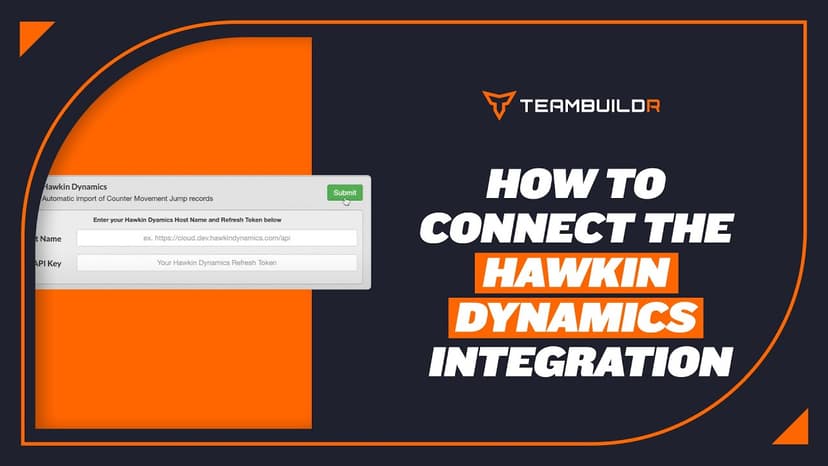
Link Hawkin Dynamics plates so jump data arrives in an athlete's workout without anyone exporting a file. Setup needs a hostname and an API key, and matching names on both sides. What you can see afterwards depends on your plan.
Also in Technology & Integrations
Walkthrough
FreeConnecting GymAware to TeamBuildr
Pair a GymAware unit with your account so bar-velocity data lands against the right athlete and the right lift on its own. Two parts: making the connection and reconciling the two exercise lists, then using the device on the floor. Needs the Platinum Pro plan.
Also in Platform & Admin
Walkthrough
FreeConnecting Lumin with TeamBuildr
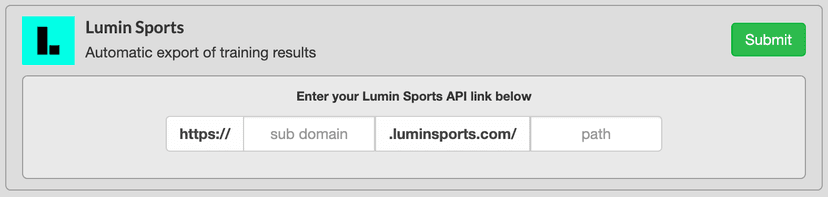
Enabling the Integration Firstly, activate the connection from you team’s TeamBuildr account. On your TeamBuildr account, navigate to settings , then click on the Integrations section in the sidebar. Now enter your te…

Read on the blog · 7 min
FreePrivate Facility Summer Training That Delivers: Building More Explosive Athletesopens blog.teambuildr.com in a new tab
Discover how athletes at our private facility made explosive gains during summer training. Using force plates, sprint gates, and structured programming, we tracked real progress in CMJ height, power output, and linear speed from April to July.
Also in Testing & Monitoring

Video · 2 min
FreeHow to Connect Your Vald Integration
How to Connect Your Vald Integration — from the TeamBuildr YouTube channel.

Read on the blog · 3 min
FreeForce Plate Technology: Benefits & Considerationsopens blog.teambuildr.com in a new tab
Force plates provide data on movement mechanics, helping coaches assess performance, adjust training loads, and optimize athletic development.
- Format
- Walkthrough
- Brand

- Category
- Integrations