Perch Integration Guide
In order to access this integration, you must be on the Platinum Pro subscription plan. Connecting Perch Account To connect an Perch account to TeamBuildr, a coach will need to input the following information on the I…
In order to access this integration, you must be on the Platinum Pro subscription plan.
Connecting Perch Account
To connect an Perch account to TeamBuildr, a coach will need to input the following information on the Integrations tab of the Settings page:
- Perch API Key
💡 The above information will be need to provided by Perch.
Once the Perch account is connected, we will automatically import the Perch exercise library into the “Imported Exercise Database” with “[Perch]” added to the end of the workout name. The coach will need to go into the Exercise database to either Move or Merge the imported exercises into the Master Database if they want to set them up for tracking.
How Athletes Are Matched
Each time a sync is run, we search for athletes TeamBuildr using the email address associated with the athlete in Perch.
Integration Details & Benefits:
- Once workout data is found for an exercise, 1 of 2 things will happen:
- TeamBuildr pulls in:
- Weight
- Reps
- Peak & Mean Power
- Peak & Mean Velocity
- Highest Mean Velocity
- Lowest Mean Velocity
- Time in Eccentric
- TeamBuildr pulls in:
- Find the exercise (ex. Back Squat) programmed on the athlete's calendar already and automatically fill out the data for the user with the VBT data as well
- If no pre-programmed exercise is found for the athlete on the completed date, we create an assignment on their calendar and then complete it with the data received from Perch
- Once the data is in, it will appear in the Workout Results report as well as the "Raw Data Report" at the moment.
Watch or read
4 minutes across 3 chapters. Click any chapter or timestamp to jump straight there.
3 chapters
In this video I'm going to show you how to initiate the integration between Perch and TeamBuilder and then talk a little bit about how that integration between the two actually work. So obviously you first must have a TeamBuilder account and then you also must have a Perch account. So what you do then is you will go to TeamBuilder and go to settings and then in settings you need to go to organization integrations and at the very bottom here under VBT section you will click on connect with Perch. Now at this point you're going to need a Perch API key and only Perch can actually give you that key. So if you have a Perch account, I presume you also have a contact at Perch, you will need to reach out to.
Perch and ask for an API key. My key is on my clipboard so I'm simply going to click paste and now my key is pasted in here. So once you paste your key and hit submit, it's going to actually connect to the TeamBuilder account. So and then now I am successfully connected to the Perch account. So here it says successfully connected to the Perch account. So what happens now is that all the exercises in your Perch account will then be migrated into TeamBuilder. But they will not go to the master database, they will actually go to the imported exercise database. Now here's the thing, the difference between the master and imported database, you ought to know the difference. If you don't, we have another video explaining that. But in short, we don't just add exercises to your master.
Still stuck? Contact support →
Read next
More in Integrations

Walkthrough
FreeEnode Integration Guide
In order to access this integration, you must be on the Platinum Pro subscription plan. Connecting Vmaxpro Account To connect an Vmaxpro account to TeamBuildr, a coach will need to input the following information on t…
Also in Platform & Admin
Walkthrough
FreeFTP Export Integration
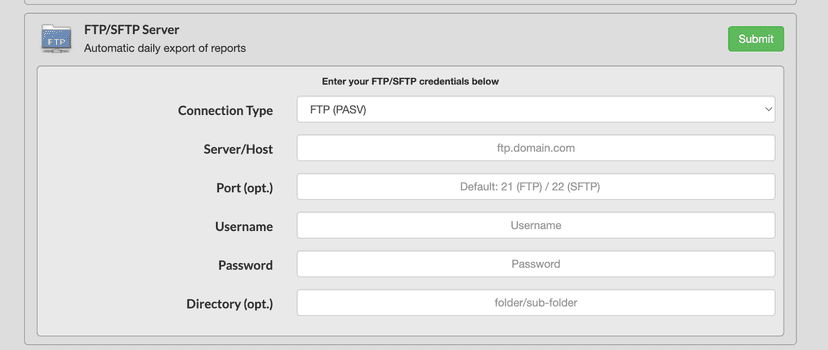
In order to access this integration, you must be on the Platinum Pro subscription plan. Overview This page will document TeamBuildr's built-in FTP export functionality. Getting Started To connect TeamBuildr with an FT…
Walkthrough
FreeDashr integration
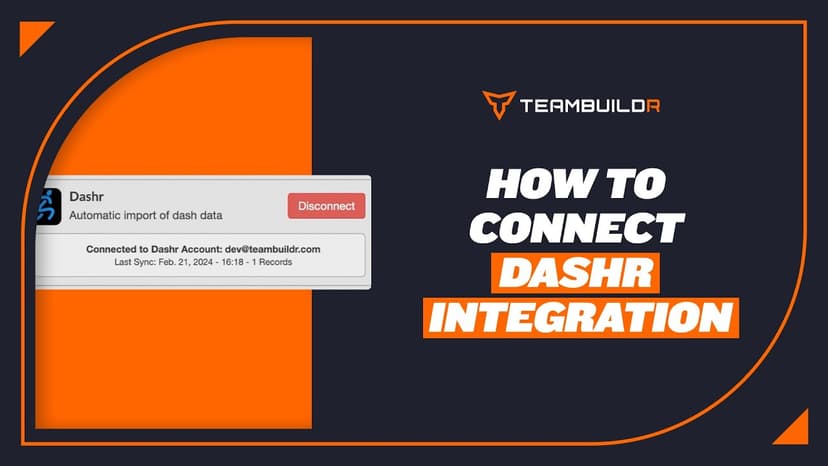
In order to access this integration, you must be on the Platinum Pro subscription plan.

Video · 2 min
FreeHow to Manage a Client in Online Payments Portal
This is includes how to change a client's program, assign a new group, change credit card information and cancel a customer's subscription.
Video · 4 min
FreeSingle Exercise Reporting System
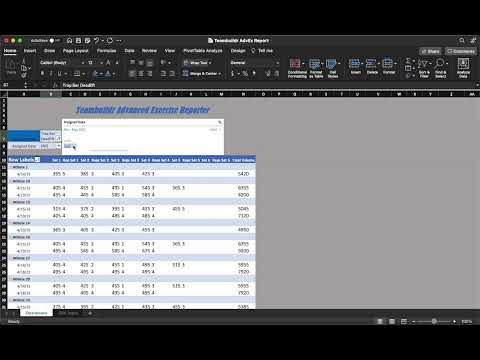
This report is built by our In-House Sports Scientist - Teofe Ziemnicki, who advises all TeamBuildr customers on the Platinum Pro plan with custom reports, dashboards, data collection and visualization. In this report, coaches can easily take the CSV reports from TeamBuildr and c
Video · 2 min
FreeHow to Connect Your Vald Integration
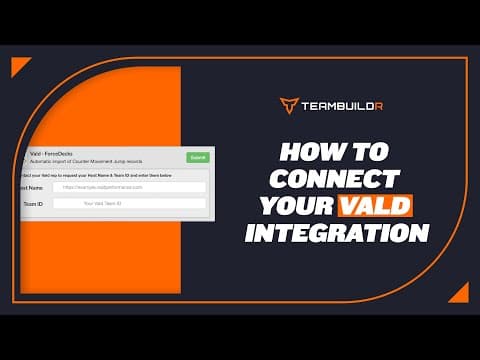
How to Connect Your Vald Integration — from the TeamBuildr YouTube channel.
- Format
- Walkthrough
- Brand

- Category
- Integrations
- Topics
- Platform & Admin