Dashr integration
In order to access this integration, you must be on the Platinum Pro subscription plan.
In order to access this integration, you must be on the Platinum Pro subscription plan.
Step-by-step setup
3 short walkthroughs covering the whole configuration.
3 steps
In this video, we're going to show you how to connect your Dasher Timing Gate integration into your TeamBuilder account. So the first thing we're going to do is head over to the TeamBuilder icon and select Settings. From there, we'll select Integrations, and you'll be brought to our Data Management page. As you scroll down, you'll find your Dasher connection, and as you can see, ours is already connected. However, if we were to hit this red Disconnect button, then a blue Connect button will appear.
Clicking that blue Connect button will pull up boxes to enter your account information for Dasher. Once you enter your information, you'll hit the green Submit button, and your Dasher account will now be connected to your TeamBuilder account. Dasher is going to use the email addresses from your TeamBuilder account to match the email addresses to your Dasher account. If for some reason, those athlete email addresses don't match, then Dasher will default to using first and last name to find a match for your athletes.
Once the integration is complete, you'll have your athletes perform their movements through their Dasher Timing Gate, as they always would. If you have any questions about connecting your Dasher integration to your TeamBuilder account, then you'll be able to go into the Data Management page. If you have any questions about the TeamBuilder account, please don't hesitate to email us at support at TeamBuilder.com.
Still stuck? Contact support →
Read next
More in Integrations
Walkthrough
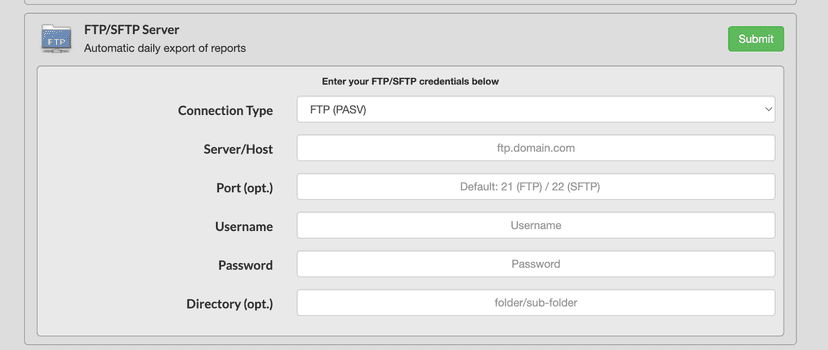
FreeFTP Export Integration
In order to access this integration, you must be on the Platinum Pro subscription plan. Overview This page will document TeamBuildr's built-in FTP export functionality. Getting Started To connect TeamBuildr with an FT…
Also in Platform & Admin

Walkthrough
FreeOutput VBT Integration Guide
In order to access this integration, you must be on the Platinum Pro subscription plan.

Walkthrough
FreePerch Integration Guide
In order to access this integration, you must be on the Platinum Pro subscription plan. Connecting Perch Account To connect an Perch account to TeamBuildr, a coach will need to input the following information on the I…
Video · 4 min
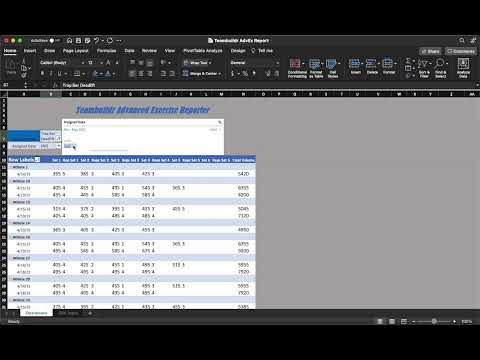
FreeSingle Exercise Reporting System
This report is built by our In-House Sports Scientist - Teofe Ziemnicki, who advises all TeamBuildr customers on the Platinum Pro plan with custom reports, dashboards, data collection and visualization. In this report, coaches can easily take the CSV reports from TeamBuildr and c

Video · 2 min
FreeHow to Manage a Client in Online Payments Portal
This is includes how to change a client's program, assign a new group, change credit card information and cancel a customer's subscription.
Spreadsheet · 2 walkthroughs
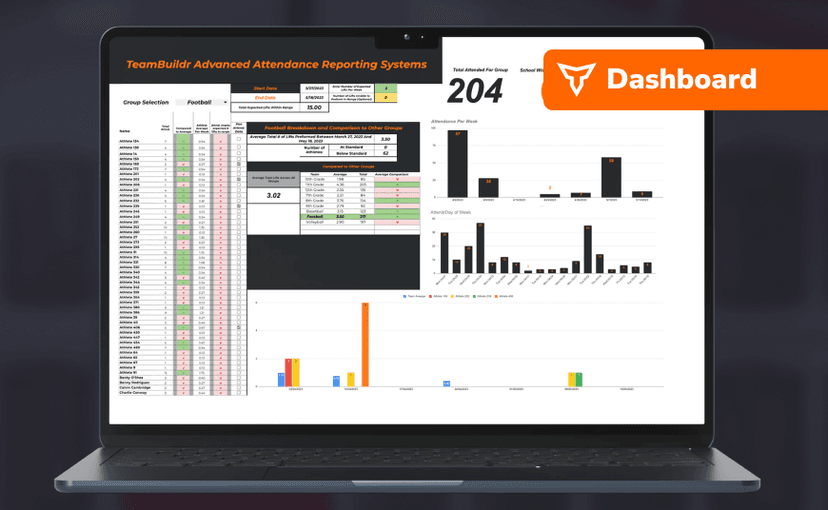
Free · sign upAdvanced Attendance Report
Attendance tracking for PE and weights classes that goes past a headcount. Copy the template and it totals participation per student over any window, ready to drop into a grade or a report to an administrator.
- Format
- Walkthrough
- Brand

- Category
- Integrations
- Topics
- Platform & Admin