How to Create and Save Leaderboards
A short video walkthrough of how to Create and Save Leaderboards from the TeamBuildr knowledge base.
Watch or read
5 minutes across 3 chapters. Click any chapter or timestamp to jump straight there.
3 chapters
In this video, we will go over leaderboard templates, how to create, edit, and manage all of those that you have saved. In this account, you can see we already have leaderboard templates created and saved. You can get here by going to workout tools and leaderboard. If you enter this first time, you'll be greeted with a different page. And what I'll do is I'll walk through deleting all of these real quick, and then I'll show you what it should look when you enter this area for the first time and creating your first leaderboard. So you'll be greeted with a page that looks this, where you can create a new board. You'll have two options when creating a new board. You can create everything using the exact same attributes that you had access to before.
Nothing around attributes has changed since the update. But what you will have access to is saving as a template or viewing as a one-time board. One-time board will not save it. It'll be that previous functionality where you just created a leaderboard one time, viewed it, and then had to recreate it a second time. Saving this will save you that step when you come back to this. And having to recreate it, it'll already be populated for you as it was when you entered the video here first time. So you can select the exercise type, and that's still lift SAQC circuits. You select an exercise.
You'll select a group, and I'll select all for this. You can identify how the athletes will populate based on the matching to groups. So any of the athletes in your account that are applied to at least the all group in this case will show. If you select this, it must match one-to-one. So only the athletes that are only assigned to all in this case will populate in this leaderboard. So I'm going to leave that a little more open to try to capture the most data here to show you.
Still stuck? Contact support →
Read next
More in Maxes

Walkthrough
FreeAdding and Managing Maxes & Test Data
A short video walkthrough of adding and Managing Maxes & Test Data from the TeamBuildr knowledge base.
Also in Platform & Admin
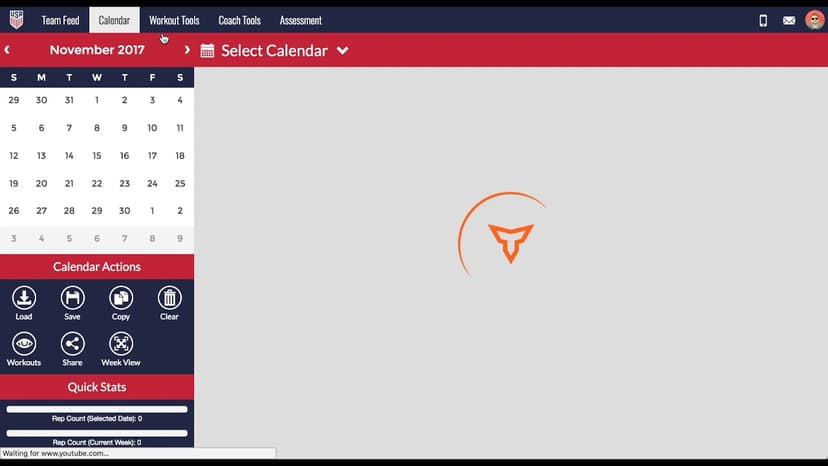
Walkthrough
FreeAdvanced 1RM Formula Use
A short video walkthrough of advanced 1RM Formula Use from the TeamBuildr knowledge base.
Walkthrough
FreeAllowing Athletes to Manage Their Own Maxes
A short video walkthrough of allowing Athletes to Manage Their Own Maxes from the TeamBuildr knowledge base.
Spreadsheet · 2 walkthroughs
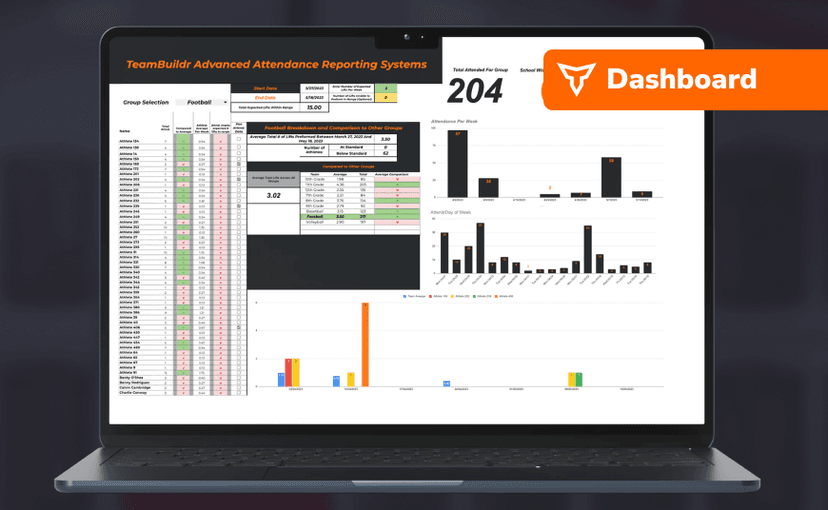
Free · sign upAdvanced Attendance Report
Attendance tracking for PE and weights classes that goes past a headcount. Copy the template and it totals participation per student over any window, ready to drop into a grade or a report to an administrator.
Spreadsheet · 2 walkthroughs
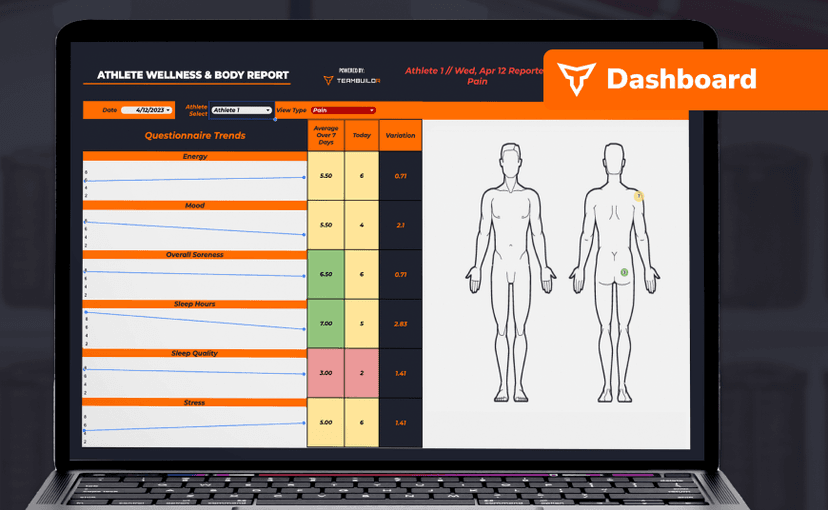
Free · sign upAthlete Wellness & Body Report
Track daily wellness check-ins and body composition in one sheet. Copy the template and follow the walkthrough to connect your athlete responses, then use the report to spot who is trending the wrong way before it costs you a session.
Spreadsheet · 7 walkthroughs
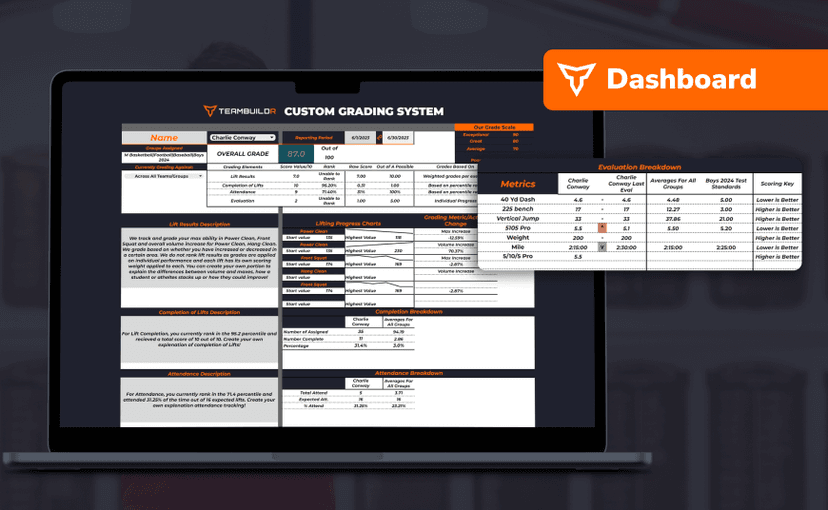
Free · sign upCustom Grading System
A ready-made grading spreadsheet for PE and weights classes. Copy the template, connect it to your TeamBuildr data, and it calculates an overall grade from attendance, workout completion and evaluations. Seven short videos walk you through every step of the setup.
- Format
- Walkthrough
- Brand

- Category
- Maxes
- Topics
- Platform & Admin