Adding and Managing Maxes & Test Data
A short video walkthrough of adding and Managing Maxes & Test Data from the TeamBuildr knowledge base.
Watch or read
4 minutes across 3 chapters. Click any chapter or timestamp to jump straight there.
3 chapters
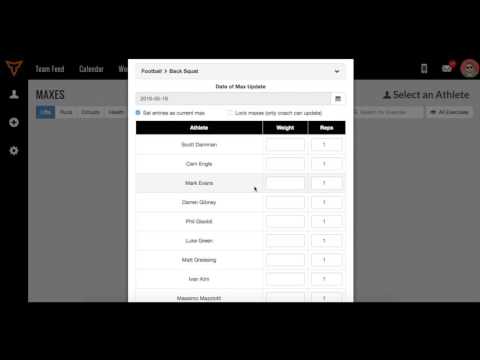
You can add and manage maxes and test data in TeamBuilder by going to workout tools and going down to maxes slash PRs. Now when I get to this page the first thing I'll do is explore how to add new data on this page. On the left hand side you'll see a little plus sign and that means that you can add data into TeamBuilder. So we can choose an exercise type such as a lift, speed, agility, quickness, and cardio, circuit, and the health data includes body weight, body fat, and resting heart rate. So in this example I'll choose a lift and then I'll choose the back squat.
So if I choose back squat the next thing I'll do is choose who to add data for. We can choose a single athlete, we can do it by group, we can do it by calendar. In my case I'll choose group and I'll choose football. Once I hit submit I'll be I'll look at this table of athletes. Your table might be much longer than mine but the first thing to do is to determine whether you want to set these entries as the current max. If I check this box it means that all the data I put in today will be the training max for the athlete going forward. The next box is called lock maxes. Now as you might know we have a formula that will raise or change the max of an athlete depending on their performance in.
Still stuck? Contact support →
Read next
More in Maxes

Walkthrough
FreeAllowing Athletes to Manage Their Own Maxes
A short video walkthrough of allowing Athletes to Manage Their Own Maxes from the TeamBuildr knowledge base.
Also in Platform & Admin
Walkthrough
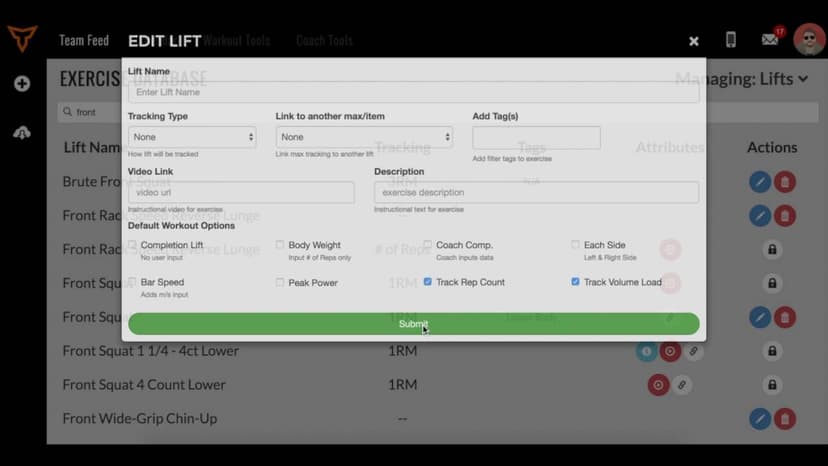
FreeHow to Link Lift Maxes
A short video walkthrough of how to Link Lift Maxes from the TeamBuildr knowledge base.
Walkthrough
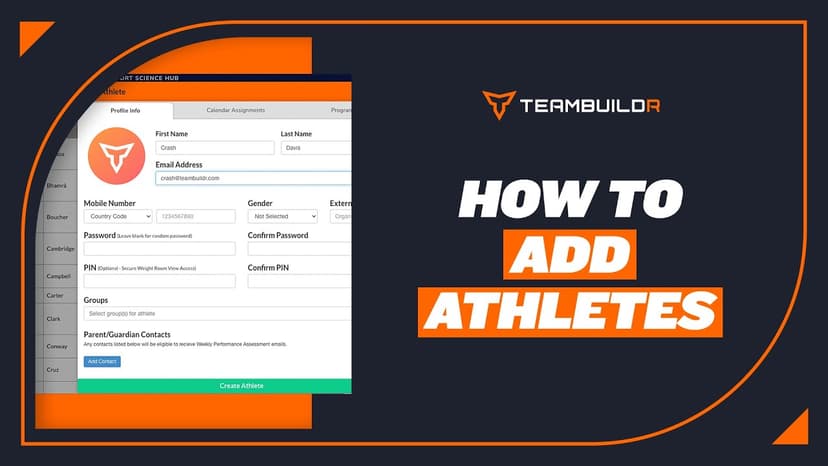
FreeAdding a New Athlete
A short video walkthrough of adding a New Athlete from the TeamBuildr knowledge base.
Video · 3 min
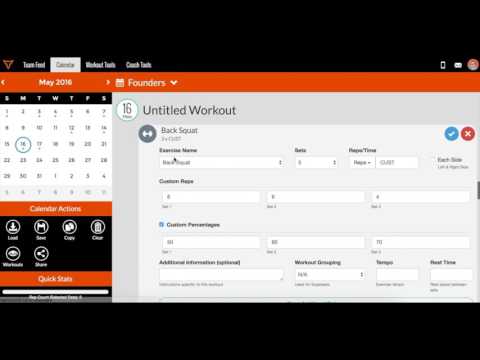
FreeAdding Maxes in the Weight Room Using a Tablet
Adding Maxes in the Weight Room Using a Tablet — from the TeamBuildr YouTube channel.
Video · 2 min
FreeHow to Add Maxes into TeamBuildr
How to Add Maxes into TeamBuildr — from the TeamBuildr YouTube channel.
Video · 1 min
FreeAdding Jumps or Throws in Exercise Database (Vertical, Broad, etc.)
Adding Jumps or Throws in Exercise Database (Vertical, Broad, etc.) — from the TeamBuildr YouTube channel.
- Format
- Walkthrough
- Brand

- Category
- Maxes
- Topics
- Platform & Admin