How to Put Athletes on 2 or More Calendars
A short video walkthrough of how to Put Athletes on 2 or More Calendars from the TeamBuildr knowledge base.
Watch or read
7 minutes across 4 chapters. Click any chapter or timestamp to jump straight there.
4 chapters
A question we get asked a lot at team builder is how to put an athlete on two or more calendars at a time so in this video we are going to show you the workaround of how to do just that while an athlete can only be assigned to one calendar we do have two ways that we can work around this issue the first is by creating a sub calendar so let's say you have an athlete who is on the basketball team and also takes a weightlifting class for PE we can create a sub calendar under the basketball calendar in order to allow them to see both programming for his basketball sport and the PE class so the first thing we're going to do is we're going to select our calendar and we are going to.
Add a calendar from there we're going to name this basketball slash PE and then the basketball calendar is going to be our parent calendar so we are going to select basketball from the drop-down and then we are going to hit add calendar from here if we select our new sub calendar basketball and PE we are automatically going to see all of the programming that has been built inside of the basketball parent calendar the next thing we're going to do is we're going to jump over to our PE calendar and we're going to save this calendar as a saved workout template so we are going to hit the save button and we're going to select the dates that we want to save so we're going to go with.
Still stuck? Contact support →
Read next
More in Manage Users
Walkthrough
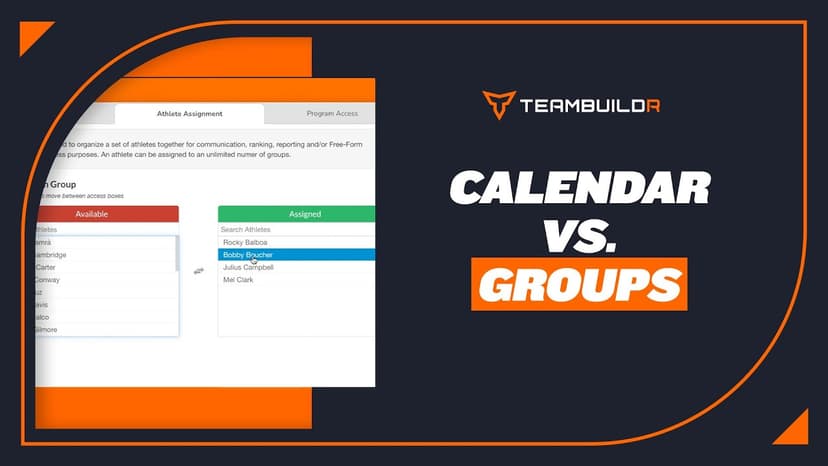
FreeCalendars vs. Groups
A short video walkthrough of calendars vs. Groups from the TeamBuildr knowledge base.
Also in Platform & Admin
Walkthrough
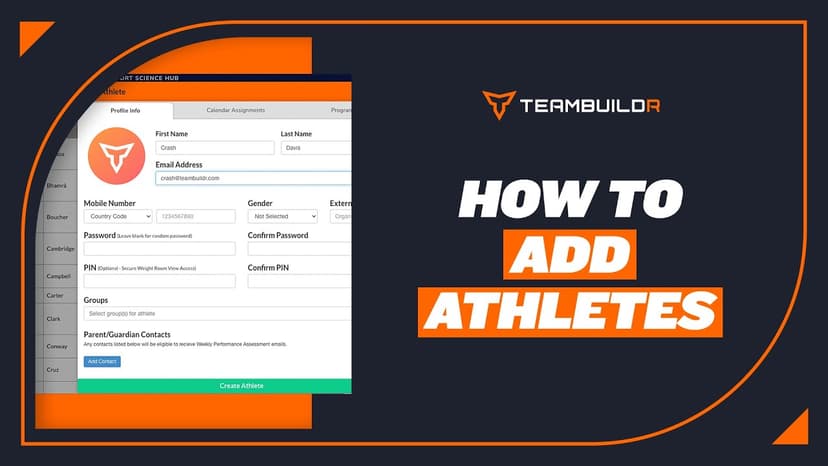
FreeAdding a New Athlete
A short video walkthrough of adding a New Athlete from the TeamBuildr knowledge base.

Walkthrough
FreeAthlete Account Switching Mobile View
A short video walkthrough of athlete Account Switching Mobile View from the TeamBuildr knowledge base.
Spreadsheet · 2 walkthroughs
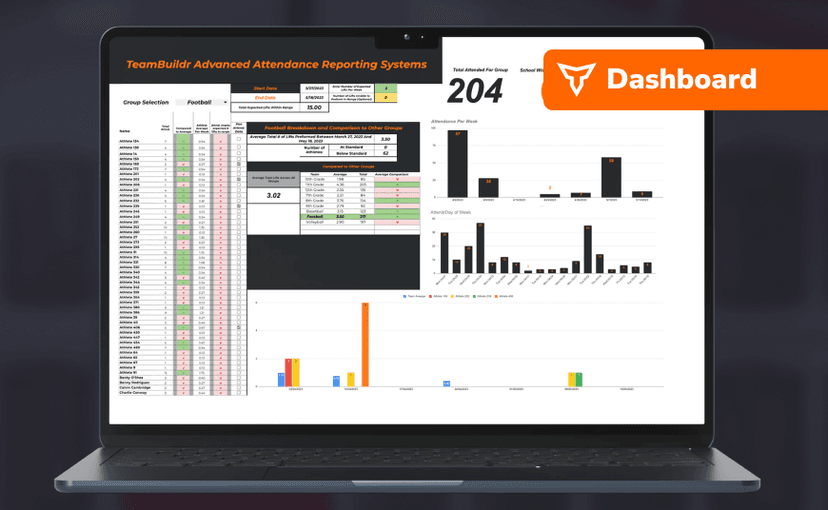
Free · sign upAdvanced Attendance Report
Attendance tracking for PE and weights classes that goes past a headcount. Copy the template and it totals participation per student over any window, ready to drop into a grade or a report to an administrator.
Spreadsheet · 2 walkthroughs
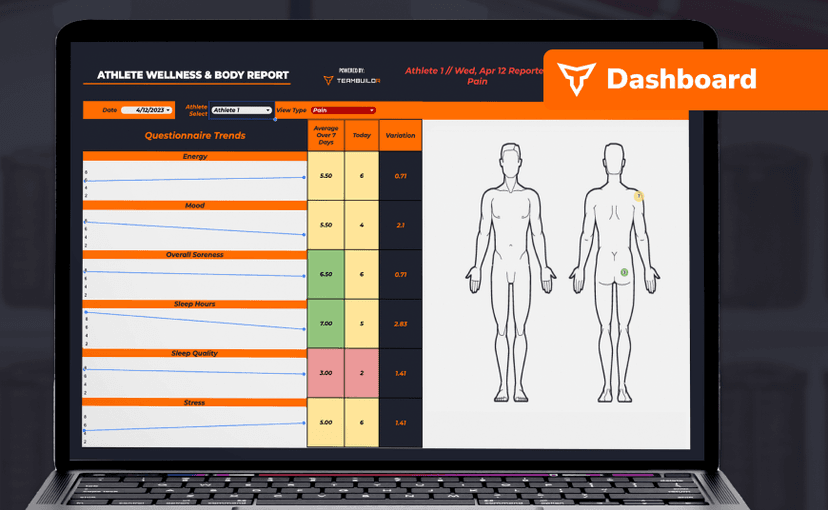
Free · sign upAthlete Wellness & Body Report
Track daily wellness check-ins and body composition in one sheet. Copy the template and follow the walkthrough to connect your athlete responses, then use the report to spot who is trending the wrong way before it costs you a session.
Spreadsheet · 7 walkthroughs
Free · sign upCustom Grading System
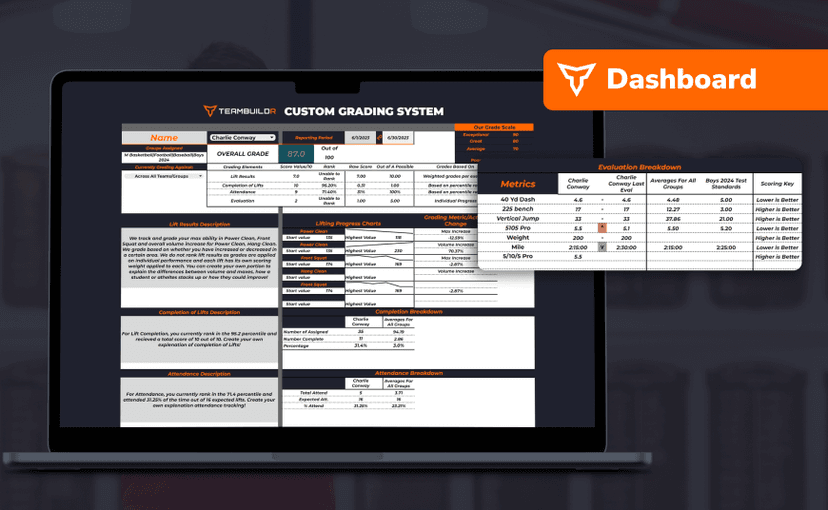
A ready-made grading spreadsheet for PE and weights classes. Copy the template, connect it to your TeamBuildr data, and it calculates an overall grade from attendance, workout completion and evaluations. Seven short videos walk you through every step of the setup.
- Format
- Walkthrough
- Brand

- Category
- Manage Users
- Topics
- Platform & Admin