Introduction to "Manage Users" Page
A short video walkthrough of introduction to "Manage Users" Page from the TeamBuildr knowledge base.
Watch or read
8 minutes across 4 chapters. Click any chapter or timestamp to jump straight there.
4 chapters
In this video, we're going to take a look at how to navigate through the Manage Users page on your Team Builder account. Now, there's a lot of information in this video, but remember, you can always schedule a support call to speak with one of our team members to help walk you through this or answer any questions that you might have. So first thing, to get to the Manage Users page, once you log in, you'll go to Coach Tools and select Manage Users, and then it'll bring you to this main page right here. Now, not only on this page can you add athletes to your account, but there are several features on here that you can use to optimize how you manage your athletes. So in taking a look at the page as a whole, you can add an athlete by clicking the.
Green plus button right here. Now, there's a separate video that goes over how to add athletes to your account, so take a look at that for more details on how to go through this process. So once you add that athlete to your account, you'll see them appear here, first name, last name, email, any groups that they've been assigned to, and their calendar assignment. But the status right here, you'll see this green registered. That lets that the athlete has not only received their activation email, but they have gone through and finished setting up their account.
If we scroll down and we see this pending right here, that lets us know that this athlete has received their activation email, but they have not gone through and finished setting up their account, so it's still not an active account technically. Now, if your athlete needs a little nudge or a reminder, this is actually a button as well. So if you click that pending button, then a little box will appear to prompt you to resend an activation email. You'll click resend activation, and then that athlete will receive another email reminding them to finish setting up their account. Over here next to our status, we see a couple of different buttons. So this green button right here is our athlete performance assessment. So if you click on that, a separate tab will open and it will show you the.
Still stuck? Contact support →
Read next
Also in Platform & Admin
Walkthrough
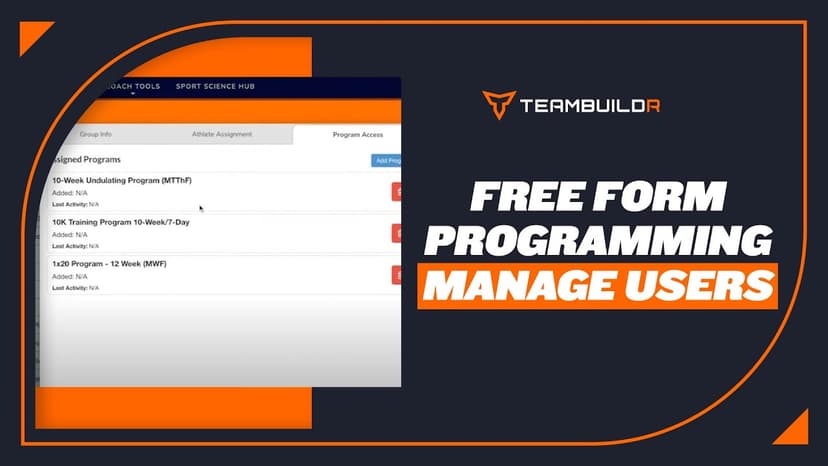
FreeHow to Manage Users with Free Form Programming
A short video walkthrough of how to Manage Users with Free Form Programming from the TeamBuildr knowledge base.
Walkthrough
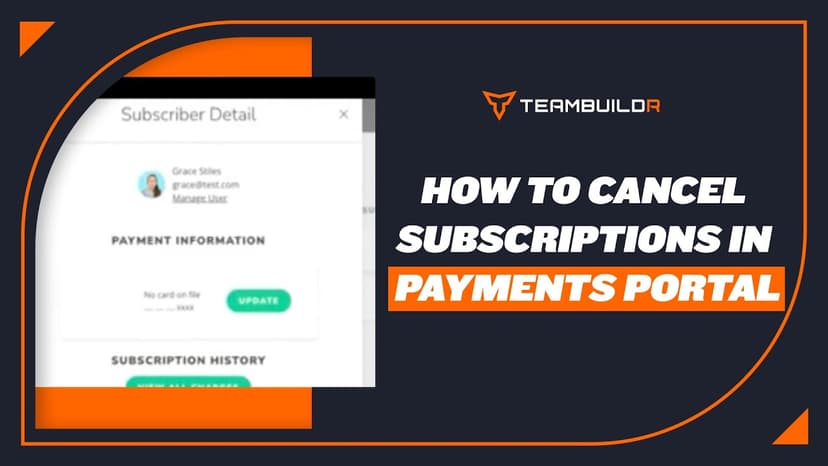
FreeHow to Cancel a Subscription
In order to cancel a subscription, you will need to do this in the Payments Portal page -- NOTE: You cannot delete a user from the Manager Users page and expect their subscription to stop. They will continue to be cha…

Walkthrough
FreeCreating & Managing Calendars
A new calendar can be created on the Manage Calendars page. CREATING THE CALENDAR Locate the "Add New Calendar" box at the top of the page Type a name for your new calendar into the input box Select a parent calendar …

Video · 2 min
FreeHow to Manage a Client in Online Payments Portal
This is includes how to change a client's program, assign a new group, change credit card information and cancel a customer's subscription.
Spreadsheet · 2 walkthroughs
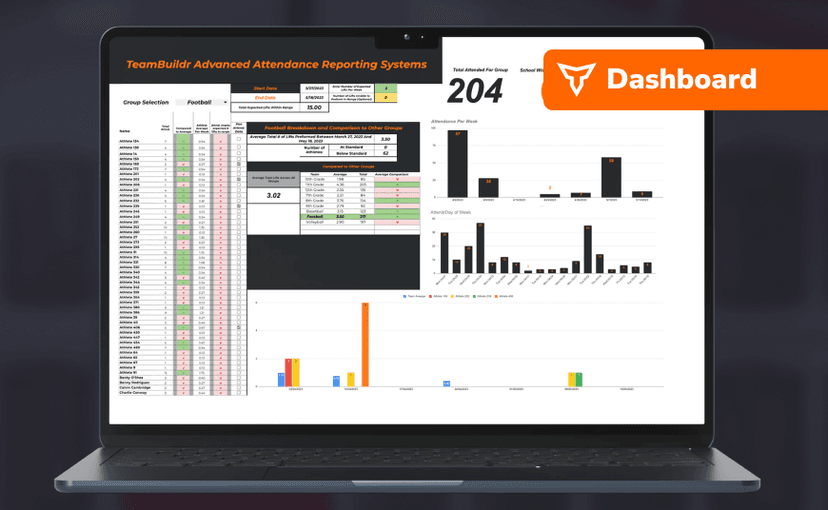
Free · sign upAdvanced Attendance Report
Attendance tracking for PE and weights classes that goes past a headcount. Copy the template and it totals participation per student over any window, ready to drop into a grade or a report to an administrator.
Spreadsheet · 2 walkthroughs
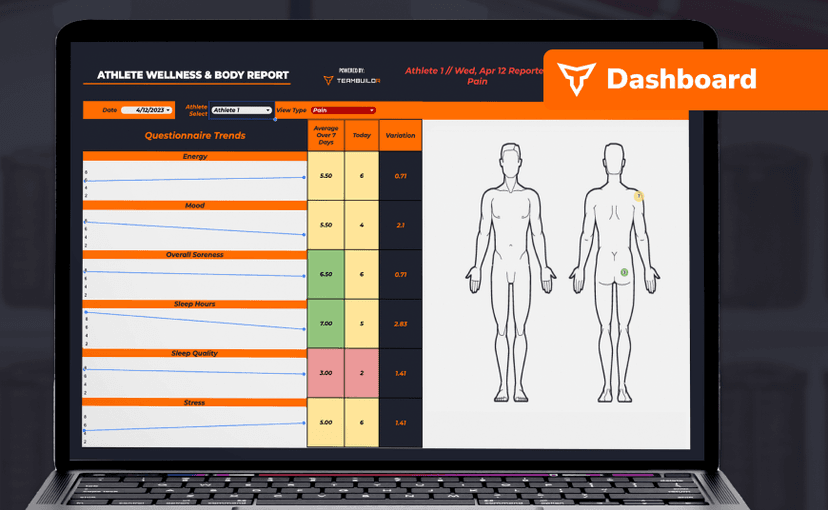
Free · sign upAthlete Wellness & Body Report
Track daily wellness check-ins and body composition in one sheet. Copy the template and follow the walkthrough to connect your athlete responses, then use the report to spot who is trending the wrong way before it costs you a session.
- Format
- Walkthrough
- Brand

- Category
- Manage Users
- Topics
- Platform & Admin