Wearables Dashboard Overview
Click here to view Exertion Score formula
Watch or read
4 minutes across 4 chapters. Click any chapter or timestamp to jump straight there.
4 chapters
Hey, how's it going? This is the TeamBuilder Wearables dashboard. I'm going to go over this real quick to show you some of the features, show you how to utilize this tool as it's going to be free to everybody with a TeamBuilder account. What this does is going to be an aggregate area with all of your athletes or clients' wearable data. If they have a wearable device that syncs with Apple HealthKit or Google Fit, they can hook it up to their TeamBuilder account if they haven't already. But this tool is going to be taking all of that information that is linked to your TeamBuilder account and it's going to dump it into this one reporting system. So starting at the top, we have Group View. So whatever groups you have assigned in your TeamBuilder account, these could be teams,.
They could be different client training times, whatever it may be, they will all appear here. And when we click on a group, it will populate all of the people that happen to appear in that group. So in this case, in this tester account, this is the only person that appears in this group. So if you were to have a full group of athletes or clients, it would look a little bit more this with the all function here on this account. And you can click to expand to see the athletes.
Still stuck? Contact support →
Read next
More in AMS
Walkthrough
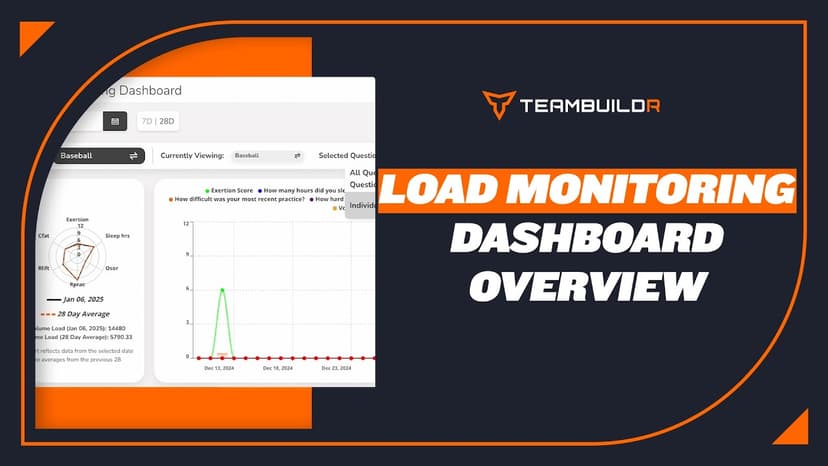
FreeLoad Monitoring Dashboard Module
The Load Monitoring Dashboard is a module that only comes with our AMS LITE add-on. The only module that is free within AMS LITE is the Wearables Dashboard module.
Also in Platform & Admin
Walkthrough
FreeDetailed Calculation of the Exertion Score
Average Heart Rate - Average heart rate is calculated by creating HR readings over the number of seconds that the watch captures that HR for. It is then summed together and divided by the total number of minutes to ca…
Walkthrough
FreeWhat Data Do We Collect and Why?
Heart Rate - This is used for the exertion score. The frequency that this is recorded depends on the device. In most cases, device reading rate will increase as your heart rate increases. Heart Rate Variability - This…
Spreadsheet · 2 walkthroughs
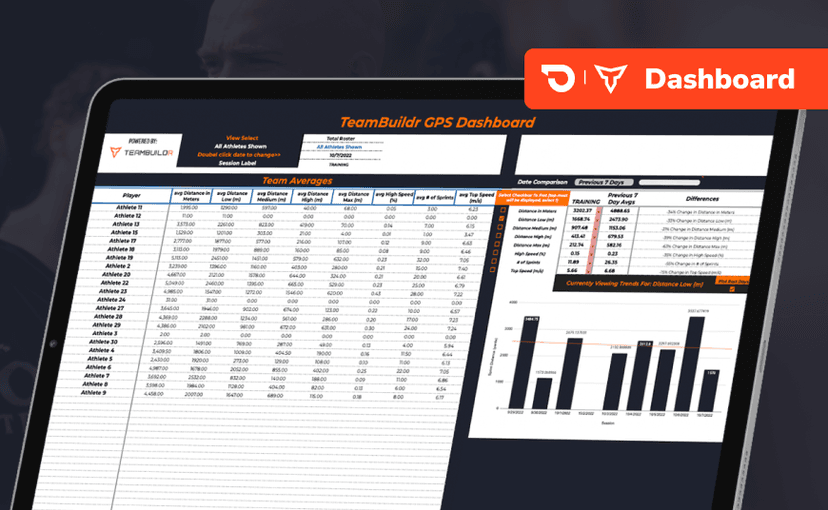
Free · sign upGPS Dashboard
Turn raw GPS exports into something you can actually read. Copy the template, follow the two setup videos, and you get a running view of load and distance per athlete. Built for coaches new to GPS or drowning in the files it produces.
Spreadsheet · 2 walkthroughs
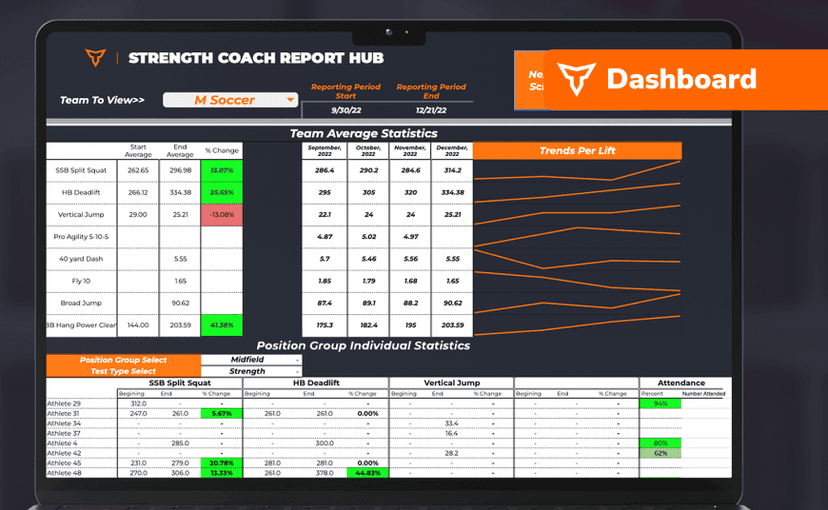
FreeSport Coach Dashboard
A shared view for sport coaches who want to see what is happening in the weight room without learning the whole platform. Copy the template and it surfaces the handful of numbers they actually ask about.
Read on the blog · 4 min
FreeMaking Sense of Monitoring: How Coaches Can Use Habit Tracking to Drive Athlete Performanceopens blog.teambuildr.com in a new tab
Discover how to turn athlete monitoring data into actionable habits. Learn wellness, readiness, and habit-tracking strategies.
- Format
- Walkthrough
- Brand
- TeamBuildr AMS
- Category
- AMS
- Topics
- Platform & Admin