Comparing Assigned and Completed Training Volume
See what you prescribed against what the athlete actually did, bucketed by percentage of their max. Built for the moment you suspect someone has been loading themselves heavier than the program says, and for deciding whether that means their max has moved. Part of the AMS package.
What you’ll learn
- Build a dashboard across up to eight weeks and ten exercises, then load it for a group
- Read the intensity buckets: reps and tonnage per 5% or 10% band of each athlete's max
- Switch to assigned versus completed to find the athlete who went heavier than prescribed, and judge whether that means raising their max or easing the next session
- Compare a group average against one athlete, and pin the tonnage line to watch volume move over time
- Save a dashboard as a template, share a view-only link that expires after 30 days, or print it to PDF
Watch or read
14 minutes across 4 chapters. Click any chapter or timestamp to jump straight there.
4 chapters
The volume tracker is a module offered within the TeamBuilder AMS subscription package. Within the volume tracker, you'll be able to review the prescribed intensities per exercise that you've assigned to your athlete's workouts. You'll have to see what's been assigned versus what's been completed on those exercises, and being able to find any differences in what the athlete chose to do, whether they progressed themselves or regressed themselves within that workout to get a better understanding of their progression throughout the exercises you prescribed.
Similar to the rest of our AMS modules, you'll be able to create a dashboard and save that dashboard as a template to be able to refer back to in a much quicker fashion. To do so, for the first time, you'll click the plus button to create a new dashboard and template that out. You'll be able to identify and select the date range to start. You'll have up to eight weeks maximum, and you can select up to ten exercises to add to this dashboard. You can choose to select just certain exercises.
You can select all the exercises you currently have running in that eight-week program, and you, I said, you can segment that out to be able to identify the differences between what's been done in your compound lifts versus what's been done in, say, your Olympic lifts or your accessories. We'll choose some time here to be able to pull exercises to review. I said, you have eight weeks, and you can select up to 10 exercises to add to this dashboard. And then anything between today will populate, and then back in time as far as you'd up to that eight-week maximum.
You can search for exercises here. You can also just simply go down and scroll to find exercises that are ordered in alphabetical order. I'll select the top three here just to choose. You can deselect them by pressing X, or you can deselect them by toggling that checkbox as well. Once you've selected the exercises you'd to review, you can hit Load Dashboard. This will prompt you to select a group to start. You can choose Football in this case. The initial graph that populates will show you the group averages. You can select that up top as well, and you can toggle between athletes to view differences in what they've been completed.
In this first view, the overview, you will see, in this case, the average of the number of reps per intensity bucket. So this will take what has been completed that day, reference against that athlete's maximum, and give a percent intensity assigned to that. In this case, you can filter down even further. So right now, you're allowed to see up to ten columns at a time. If you go to five percent, you'll still have that ten column maximum, or ten bar maximum.
But what it will do is it will decrease the amount of range that you're allowed. This will split the bars into a five percent increment. So every bar here is five percent from the bottom to the top threshold. So we have 50 to 55, 55 to 60. If I toggle back to ten percent, you'll see those thresholds have now increased from 50 to 60. So that full ten percent, and you can now increase the range to view a larger chunk of information.
Let's stay a little bit more granular, stick with the five percent. What I will do is I will file this down even further to get a better view of where information lies. So if I know this program was set to be assigned between 70 and 80 percent for the barbell back squat, I can file that down further. But when I add exercises to review, I can do so down here, and those will populate below as well. So you can see different exercises on top of each other to get a better understanding of what's being done.
Still stuck? Contact support →
Read next
Also in Platform & Admin
Walkthrough
FreeWhat Happens If I Do Not Wear My Device for a Few Days?
We will compare against your most previous results, but understand that this will be a less effective means of scoring since it will not have accounted for any activities or lack there of over the course of the time y…
More in AMS
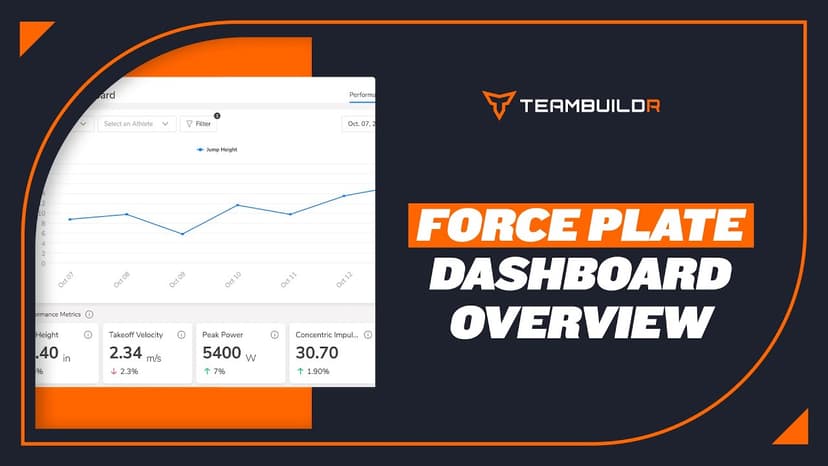
Walkthrough
FreeForce Plate Dashboard Overview
A short video walkthrough of force Plate Dashboard Overview from the TeamBuildr knowledge base.
Also in Testing & Monitoring
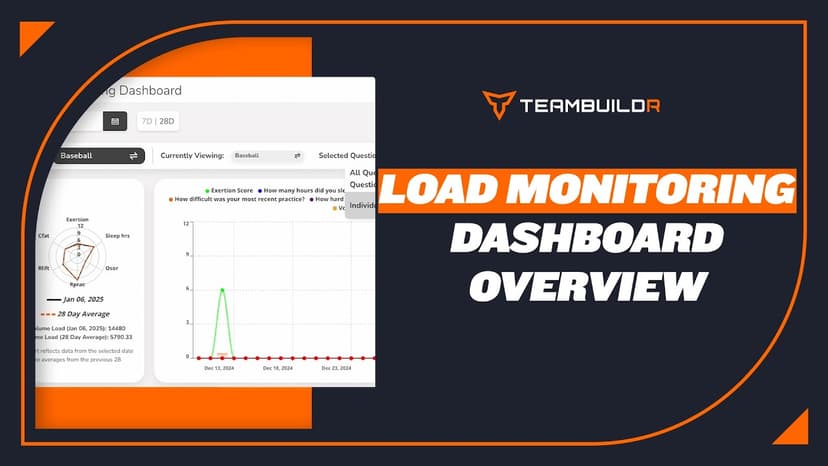
Walkthrough
FreeLoad Monitoring Dashboard Module
The Load Monitoring Dashboard is a module that only comes with our AMS LITE add-on. The only module that is free within AMS LITE is the Wearables Dashboard module.
Read on the blog · 4 min
FreeMaking Sense of Monitoring: How Coaches Can Use Habit Tracking to Drive Athlete Performanceopens blog.teambuildr.com in a new tab
Discover how to turn athlete monitoring data into actionable habits. Learn wellness, readiness, and habit-tracking strategies.
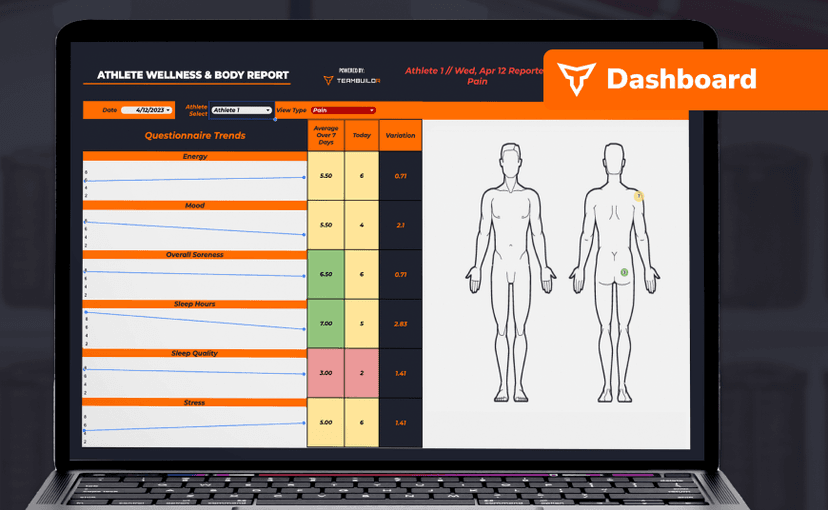
Spreadsheet · 2 walkthroughs
Free · sign upAthlete Wellness & Body Report
Track daily wellness check-ins and body composition in one sheet. Copy the template and follow the walkthrough to connect your athlete responses, then use the report to spot who is trending the wrong way before it costs you a session.
Spreadsheet · 2 walkthroughs
Free · sign upGPS Dashboard
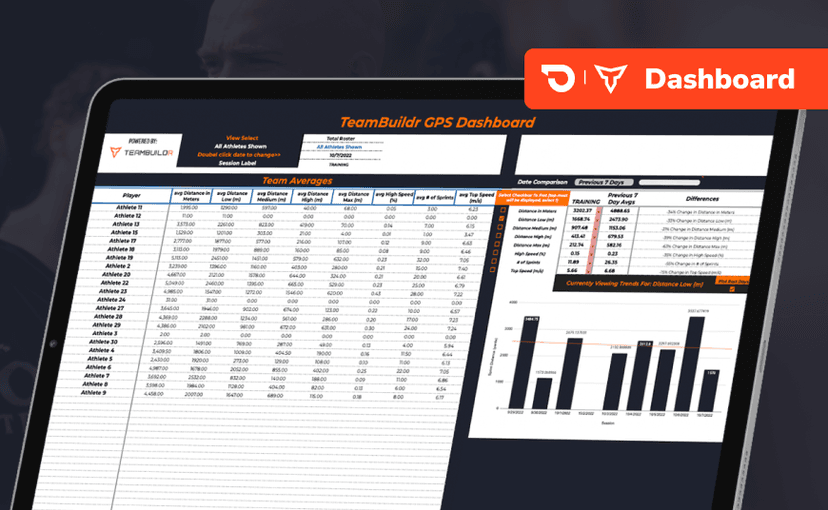
Turn raw GPS exports into something you can actually read. Copy the template, follow the two setup videos, and you get a running view of load and distance per athlete. Built for coaches new to GPS or drowning in the files it produces.
- Format
- Walkthrough
- Brand
 TeamBuildr AMS
- Category
- AMS