KPI Tracker Dashboard Overview
A short video walkthrough of kPI Tracker Dashboard Overview from the TeamBuildr knowledge base.
Watch or read
10 minutes across 4 chapters. Click any chapter or timestamp to jump straight there.
4 chapters
The Sport Coach Dashboard is a new feature for Team Builder's Sports Science Hub Core subscription. It focuses on providing insightful strength and conditioning data for distribution to sport coaches. To access this, you'll hit the Sports Science Hub tab, and we'll see our Sport Coach Dashboard right here on the left side. This dashboard enables sport coaches to receive and analyze customized reports and data trends for their athletic teams and enhances their interaction with the Team Builder platform. So let's dive in. Upon entering the dashboard, you'll be presented with a list of previously created dashboards as we see here with our baseball dashboard. You also have the option to create a new one here as well. Strength coaches who own these dashboards can view, edit, share, duplicate, or delete them. However,.
If a sports coach has a Team Builder account with limited interactions, then they are only going to be able to view, duplicate, or simply learn more through the dashboard. To create a new dashboard, we'll click this blue plus button right here. From there, we are going to want to select the exercises that we want to look at to include in the dashboard, and you can select up to 10 exercises. As you toggle an exercise, you'll see it appear in the selected exercise box. Or you can simply use this search box right here to search for a specific exercise and add it into the dashboard. If you want to remove an exercise that you've selected, simply click the X right here and it will be removed from the dashboard. You'll also.
Want to use this drop down arrow to select the parameters for the maxes and PRs. So if you want to see all of the maxes and PRs, only something that's been manually entered or only generated, you can select from these three options. From there, we click load dashboard and we have our dashboard created. Now we can select a group of athletes that we want to use and we can see the data begin to populate. To show you a clearer view of what the data will look I'm going to jump back into our original dashboard where I know that there's data. But as you can see, this was how we created our first dashboard. Now, if I want to go back, it's important to note that the dashboard does not save on its own.
So once you've created a new dashboard, you want to make sure that you hit that save dashboard button. So that way you can give the dashboard a title. So we'll just say sport coach test. You can give it a description if you want and then select next. From there, you can choose which groups have access to this dashboard. So this is how you'll determine if the sport coach has either unlimited access or if they have access to a certain group within their coach profile settings, then you'll want to select that group. So that way they can have access to be able to view the dashboard itself. So if we wanted to select a specific group, we can select baseball and hit submit and then it will.
Still stuck? Contact support →
Read next
More in AMS
Walkthrough
FreeHabit Tracker Dashboard Overview
Habit Tracker is accessible through AMS LITE which is an additional subscription to the TeamBuildr Platform (Silver, Gold, etc.) See pricing here: teambuildr.com/pricing
Also in Platform & Admin
Walkthrough
FreeForce Plate Dashboard Overview
A short video walkthrough of force Plate Dashboard Overview from the TeamBuildr knowledge base.
Walkthrough
FreeHabit Tracker - Athlete Perspective
A short video walkthrough of habit Tracker - Athlete Perspective from the TeamBuildr knowledge base.
Read on the blog · 4 min
FreeMaking Sense of Monitoring: How Coaches Can Use Habit Tracking to Drive Athlete Performanceopens blog.teambuildr.com in a new tab
Discover how to turn athlete monitoring data into actionable habits. Learn wellness, readiness, and habit-tracking strategies.

Read on the blog · 7 min
FreePrivate Facility Summer Training That Delivers: Building More Explosive Athletesopens blog.teambuildr.com in a new tab
Discover how athletes at our private facility made explosive gains during summer training. Using force plates, sprint gates, and structured programming, we tracked real progress in CMJ height, power output, and linear speed from April to July.
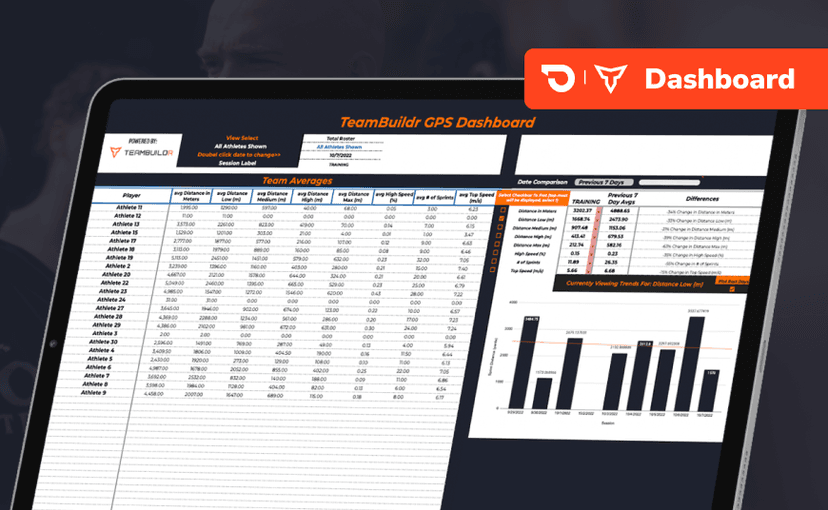
Spreadsheet · 2 walkthroughs
Free · sign upGPS Dashboard
Turn raw GPS exports into something you can actually read. Copy the template, follow the two setup videos, and you get a running view of load and distance per athlete. Built for coaches new to GPS or drowning in the files it produces.
- Format
- Walkthrough
- Brand
- TeamBuildr AMS
- Category
- AMS
- Topics
- Platform & Admin