Program Tags
A short video walkthrough of program Tags from the TeamBuildr knowledge base.
Watch or read
4 minutes across 4 chapters. Click any chapter or timestamp to jump straight there.
4 chapters
New to Team Builder is Program Tags. In Program Tags, you'll be able to create and assign a tag to any of your saved programs within your account to better manage them. You can get to Program Tags by going to Coach Tools, Exercises, and then using the right-hand menu. Go down to the bottom, Program Tags. Upon first entry, you'll be greeted with an Add Program Tag button. As you start to add them, you can always use the plus symbol to the top left to keep adding more. We'll use this to start. You'll be asked to enter a tag name, select a color, and associate a program. We'll start with Strength. We can choose any of the preset colors here, or we can use the color picker to the right to select our own. I'll stick with the blue for now,.
And then you can start associating that with any of the programs in your account. You can associate a tag with any number of programs. There's not necessarily a limit, and it's optional as well. So if you'd to pre-populate your account with tags and then go back and start adding the tags to the programs later on, you can certainly do that as well. Hitting Submit will populate that into this library, and you can bulk delete. You can edit that by changing the name, color, or any of the associated programs at any time. If you'd to remove the color, you can click the X there and then hit Select. The default color is just a gray, so there will always be a bit of a background to any of the tags that you have.
Still stuck? Contact support →
Read next
More in Exercise Database

Walkthrough
FreeUltimate Guide to Using Tags
A short video walkthrough of ultimate Guide to Using Tags from the TeamBuildr knowledge base.
Also in Platform & Admin

Walkthrough
FreeHow to Manage Tags
A "tag" allows you to label a group of lifts together - for many applications. For example, you can group Power Clean and Hang Clean under the "Cleans" tag. Here is our video on how to use Tags in your TeamBuildr acco…
Walkthrough
FreeHow to Filter Lifts When Programming With Tags (New Build)
A short video walkthrough of how to Filter Lifts When Programming With Tags (New Build) from the TeamBuildr knowledge base.
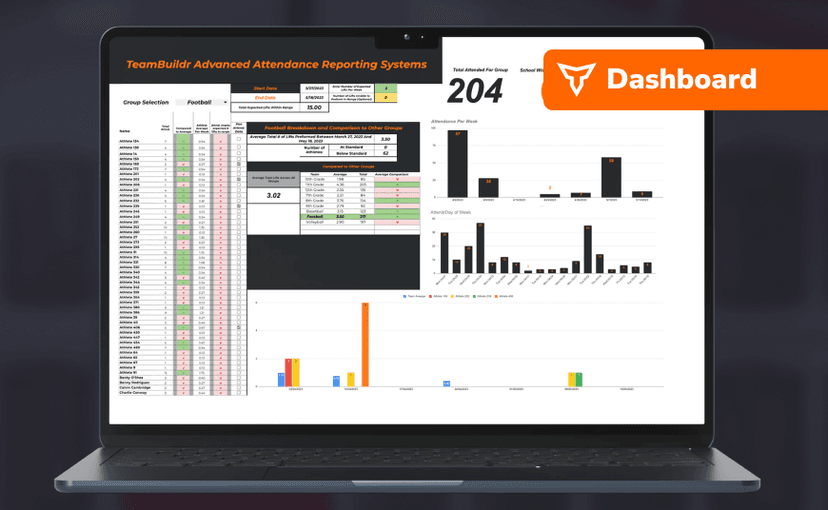
Spreadsheet · 2 walkthroughs
Free · sign upAdvanced Attendance Report
Attendance tracking for PE and weights classes that goes past a headcount. Copy the template and it totals participation per student over any window, ready to drop into a grade or a report to an administrator.
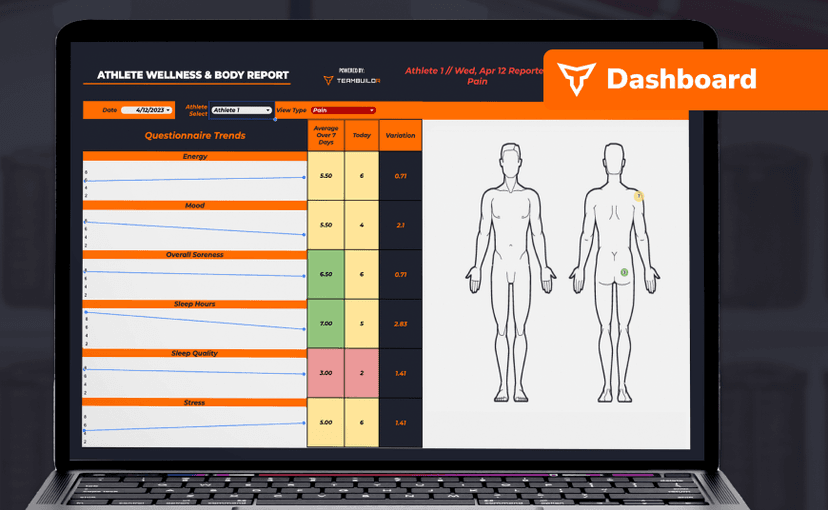
Spreadsheet · 2 walkthroughs
Free · sign upAthlete Wellness & Body Report
Track daily wellness check-ins and body composition in one sheet. Copy the template and follow the walkthrough to connect your athlete responses, then use the report to spot who is trending the wrong way before it costs you a session.
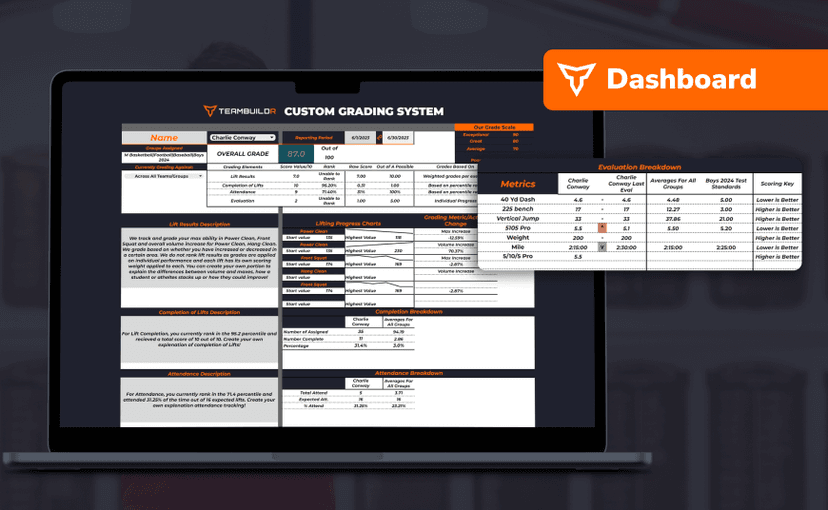
Spreadsheet · 7 walkthroughs
Free · sign upCustom Grading System
A ready-made grading spreadsheet for PE and weights classes. Copy the template, connect it to your TeamBuildr data, and it calculates an overall grade from attendance, workout completion and evaluations. Seven short videos walk you through every step of the setup.
- Format
- Walkthrough
- Brand

- Category
- Exercise Database
- Topics
- Platform & Admin