How to Add Session Breaks in the Calendar
A short video walkthrough of how to Add Session Breaks in the Calendar from the TeamBuildr knowledge base.
Watch or read
3 minutes across 3 chapters. Click any chapter or timestamp to jump straight there.
3 chapters
in this video we're going to take a look at how to add session breaks to our calendar so first thing we're going to do is head to the calendar Tab and select a calendar that we want to build our programming into so as you can see we've got a workout scheduled for today and let's say we want to add a session break into here so first thing we're going to do is add an exercise and then as we can see all of the icons over on the left we are going to select the more op option and then right here is our option to add in a session break so when we click this we will be able to create a title for the session break so let's
say um we wanted to use session breaks to delineate between um workout number one and workout number two for the day so we're going to title this workout one we also have the option of selecting this toggle to allow the workouts to collapse now this is not something that will be seen in side of the calendar but will appear in the athletes workout entry view or weit room view when this is selected so basically all that means is that the athlete will see workout
Still stuck? Contact support →
Read next
More in The Calendar

Walkthrough
FreeAdvanced Programming on the Calendar
A short video walkthrough of advanced Programming on the Calendar from the TeamBuildr knowledge base.
Also in Platform & Admin
Walkthrough
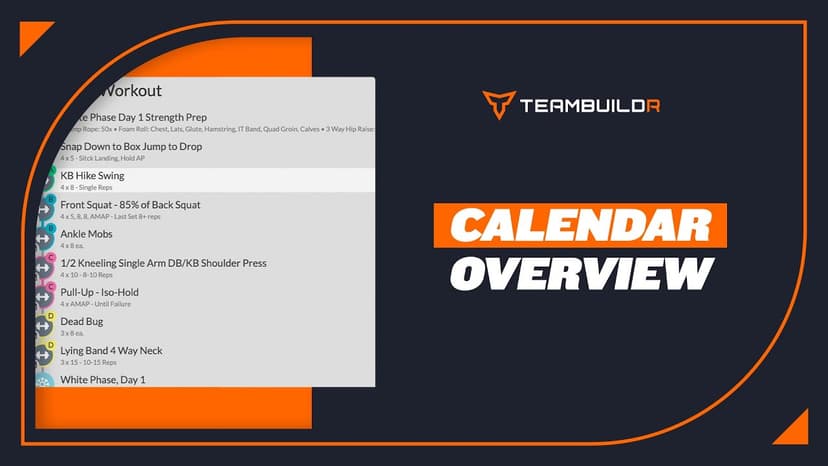
FreeCalendar Overview
A short video walkthrough of calendar Overview from the TeamBuildr knowledge base.
Walkthrough
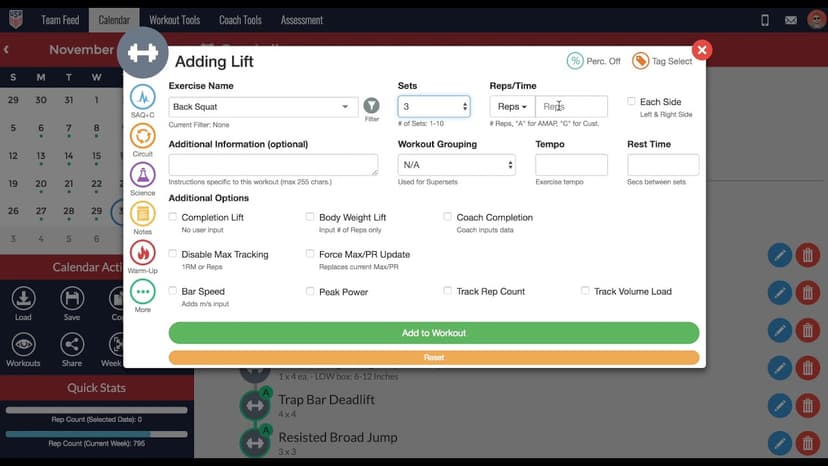
FreeHow to Add a Lift in the TeamBuildr Calendar
A short video walkthrough of how to Add a Lift in the TeamBuildr Calendar from the TeamBuildr knowledge base.
Spreadsheet · 2 walkthroughs
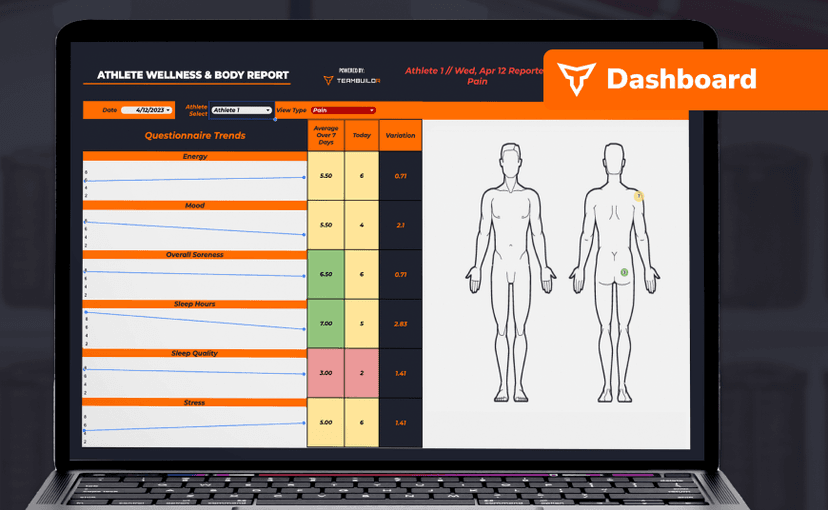
Free · sign upAthlete Wellness & Body Report
Track daily wellness check-ins and body composition in one sheet. Copy the template and follow the walkthrough to connect your athlete responses, then use the report to spot who is trending the wrong way before it costs you a session.

Video · 7 min
FreeProgramming Tactical Session in TeamBuildr (PLAE Academy)
Programming a single tactical session in TeamBuildr. Get the entire PLAE Academy / Jon Hofman Tactical Program in TeamBuildr here: Here the link to enroll in the FREE PLAE Academy course "Fit for Duty": PLAE Academy Homepage:

Video · 2 min
FreeConcurrent Programming w/ Layers
Strength and conditioning coach Jack Edwards of Gravity Sports Performance breaks down how they layer their concurrent periodization model to keep his athletes training in sports that run all year long. Don’t forget to like and subscribe to catch more educational content from Tea
- Format
- Walkthrough
- Brand

- Category
- The Calendar
- Topics
- Platform & Admin